What are the CoDrone EDU Sensor Guidelines & Limitations
 Updated
by
Robolink Support
Updated
by
Robolink Support
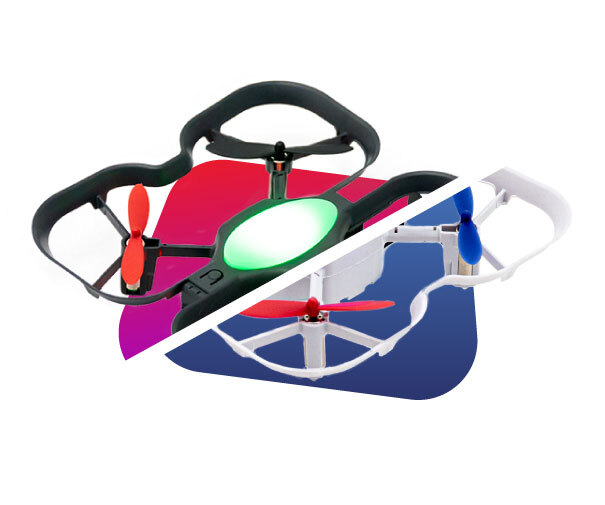
CoDrone EDU has a variety of sensors that help it hover, sense the world around it, and follow your code. Each sensor is powerful, but they all have certain conditions where they work best and others where they may give unexpected results.
This guide explains what each sensor does, its limitations, and troubleshooting tips so you can get the most accurate results.
Range Sensors (Front & Bottom)
What they do:
- The front sensor detects and measures obstacles directly in front of the drone's sensor.
- The bottom sensor detects and measures how far the drone is from a surface.
- They work by sending out a beam of invisible infrared light and timing how long it takes to bounce back.
Limitations:
- This sensor works best when the drone is 1.5 meters or less away from the surface/obstacle. Anything over 1.5m will result in either inaccurate or timed-out readings.
- Flying over shiny surfaces can scatter the infrared beam, so the sensor may not get a clear signal back.
- Flying over dark or black surfaces can absorb the infrared beam, causing the sensor to read “out of range.”
- Flying over uneven or slanted surfaces can make the infrared beam bounce unpredictably, resulting in jumpy or inconsistent readings.
- Bright sunlight or other infrared sources (like some lamps) may interfere with the sensor.
- If the drone can’t “see” the surface, it may display 999 (“out of range”) in the Sensor Dashboard.
Troubleshooting:
- Problem: Sensor shows “999” or no reading.
→ Cause: Surface is too reflective/dark, or drone is out of range.
→ Fix: Fly over the programming mat or another flat, matte surface. Stay under 1.5 meters.
Best Practices:
- Use the competition programming mat or Robolink's Programming Mat whenever possible.
- Avoid direct sunlight or strong IR sources.
- Keep surfaces consistent for smoother results.
Color Sensors (Front & Rear)
What they do:
- Shine red, green, and blue (RGB) light onto the surface.
- Measure how much light bounces back to identify a color.
- Pre-calibrated to the 8 included color cards (red, yellow, green, light blue, blue, purple, white, black) that come with your kit.
Limitations:
- These sensors only work when the drone is stationary on a surface (not while flying).
- The sensors are pre-calibrated to the 8 included color cards (red, yellow, green, light blue, blue, purple, white, black). Colors outside this set may not be detected correctly.
- When programming in Blockly or Python, you can create custom color datasets, but these custom colors will not appear on the controller screen.
- Glossy or reflective surfaces can cause extra light to bounce back, leading to inaccurate color detection.
- Dark or poorly lit surfaces may not reflect enough light, causing the sensor to miss or misread colors.
- Custom colors require you to add, save, and load a dataset before reuse, otherwise the drone won’t recognize them.
Troubleshooting:
- Problem: Drone doesn’t detect a color correctly.
→ Cause: Wrong lighting, glossy surface, or using a color outside the dataset.
→ Fix: Use the included color cards in good lighting. For custom colors, calibrate and save/load your dataset before reusing programs.
Best Practices:
- Calibrate your color sensor if you are not receiving accurate readings
- Always save/load both your dataset and your Blockly file when working with custom colors.
Gyroscope & Accelerometer
What they do:
- Detect movement: the accelerometer senses changes in speed, while the gyroscope senses rotation.
- Together, they help the drone hover, turn smoothly, and stabilize.
Limitations:
- The drone can drift over time if the drone is not calibrated on a flat surface or if damage has been done to the drone's printed circuit board (PCB).
- Damaged or loose parts (frame, propeller, motor) can cause vibrations that disrupt the accelerometer and gyroscope, leading to poor flight performance.
- Sudden bumps or vibrations can cause temporary spikes in the readings.
Troubleshooting:
- Problem: Drone drifts even after trimming.
→ Cause: Motors/propellers have dirt or debris in them; a motor is going bad; drone's gyroscope needs to be recalibrated
→ Fix: Please follow our HelpDoc Article: How do I stop my CoDrone EDU from drifting?
Best Practices:
- Reset the gyro in code with
drone.reset_gyro(). - Perform calibration regularly, especially after moving the drone between surfaces.
- Keep motors and props clean and in good condition.
Optical Flow Sensor (Bottom)
What it does:
- Works like a computer mouse - takes tiny pictures of the surface and compares them to track movement.
- Keeps track of the drone’s position relative to where it took off.
- Resets coordinates to (0,0,0) every time the drone takes off.
Limitations:
- Works best when the drone is flying below 1.5 meter. Accuracy decreases at higher altitudes.
- Needs a textured or patterned surface (like competition programming mat or Robolink's Programming Mat). Plain, shiny, or glass floors don’t provide enough visual detail for tracking.
- Requires good, even lighting. Too dark or too bright can make it difficult for the sensor to compare surface patterns.
- Coordinates reset to (0,0,0) each time the drone takes off.
- Only active while the drone is in flight.
Troubleshooting:
- Problem: Drone position functions don’t work well.
→ Cause: Optical flow sensor can’t see texture or is too high.
→ Fix: Fly over the programming mat or patterned floor. Stay under 1 meter for best accuracy. Make sure the area is well lit.
Best Practices:
- Stick to patterned, matte surfaces.
- Avoid flying too high if using position-based functions.
Barometer (Pressure Sensor)
What it does:
- Measures air pressure to estimate altitude.
- Works with the bottom range sensor for better height control.
Limitations:
- Sensitive to airflow (fans, AC vents, or open windows can cause fluctuations).
- Pressure readings can drift slightly even in stable environments, especially if the drone changes altitude quickly.
Troubleshooting:
- Problem: Drone altitude seems unstable.
→ Cause: Air drafts or pressure changes interfers with the barometer.
→ Fix: Fly in a space without fans or vents. Combine with the bottom range sensor for more stable hover.
Best Practices:
- Avoid flying near strong air currents.
- Rely on combined sensor input (barometer + bottom range) for the most stable flight.
- Works best when combined with the bottom range sensor for more stable height hold.
General Sensor Tips
- A programming mat is your best friend, it provides texture, patterns, and non-reflective surfaces for multiple sensors.
- Keep your environment well lit but avoid direct sunlight or infrared interference.
- Do regular maintenance: clean motors/props, check for damage, and recalibrate the gyro.
- Remember: sensors have limitations, designing missions with those in mind will give you the most reliable results.
👉 Want to learn more? Check out the CoDrone EDU Documentation for code examples and troubleshooting guides. If you have any questions, please reach out to support@robolink.com
