How do I stop my CoDrone EDU from drifting?
 Updated
by
Robolink Support
Updated
by
Robolink Support
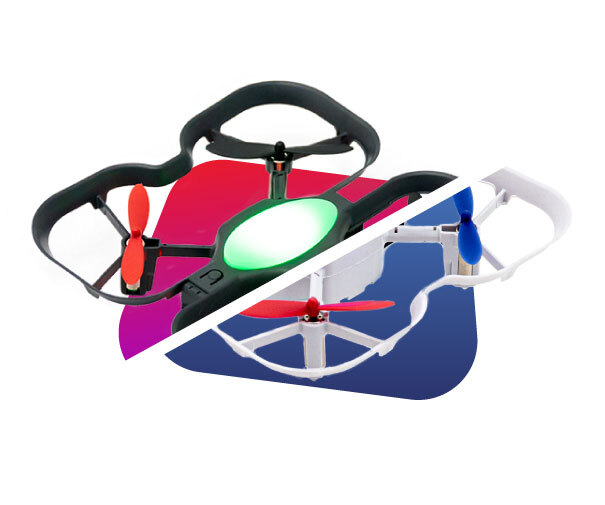
If your CoDrone EDU is drifting during flight, this is a common issue that can usually be fixed with a few simple checks and adjustments. Below are the most common causes and what you can do to fix them.
- Check your propellers for debris and correct orientation
Drifting may be caused by debris lodged in the motor shaft, such as hair or dust. Even small particles can slow down a motor and throw off balance during flight. Use the propeller removal tool to carefully lift the propeller while holding the motor in place with your fingers. Check the propeller orientation to ensure they are placed correctly based on the CoDrone EDU setup guide.
- Replace any faulty motors
A worn-out motor may not generate enough power, causing the drone to drift in the opposite direction of the failing motor.
To identify which motor needs replacing, inspect each one for signs of wear, such as broken motor bases, pinched wires, unusual sounds, or difficulty spinning. You can also perform the 'Flick Test' by gently flicking a propeller to see if it spins freely. If the propeller stops spinning immediately, check for debris and consider replacing the motor if necessary
- Reset the gyroscope on the drone
Your drone may have been calibrated on an uneven surface, which confuses its internal balance system. To recalibrate the gyroscope, place the drone on a flat, stable surface—preferably the floor. Locate the button on the top of the drone, and press it quickly 4 times in a row. You'll hear a sound sequence confirming that the calibration was successful.
NOTE: If you don’t hear the confirmation chime, do not press the action button again. Instead, power the drone off and back on, then repeat the calibration steps.
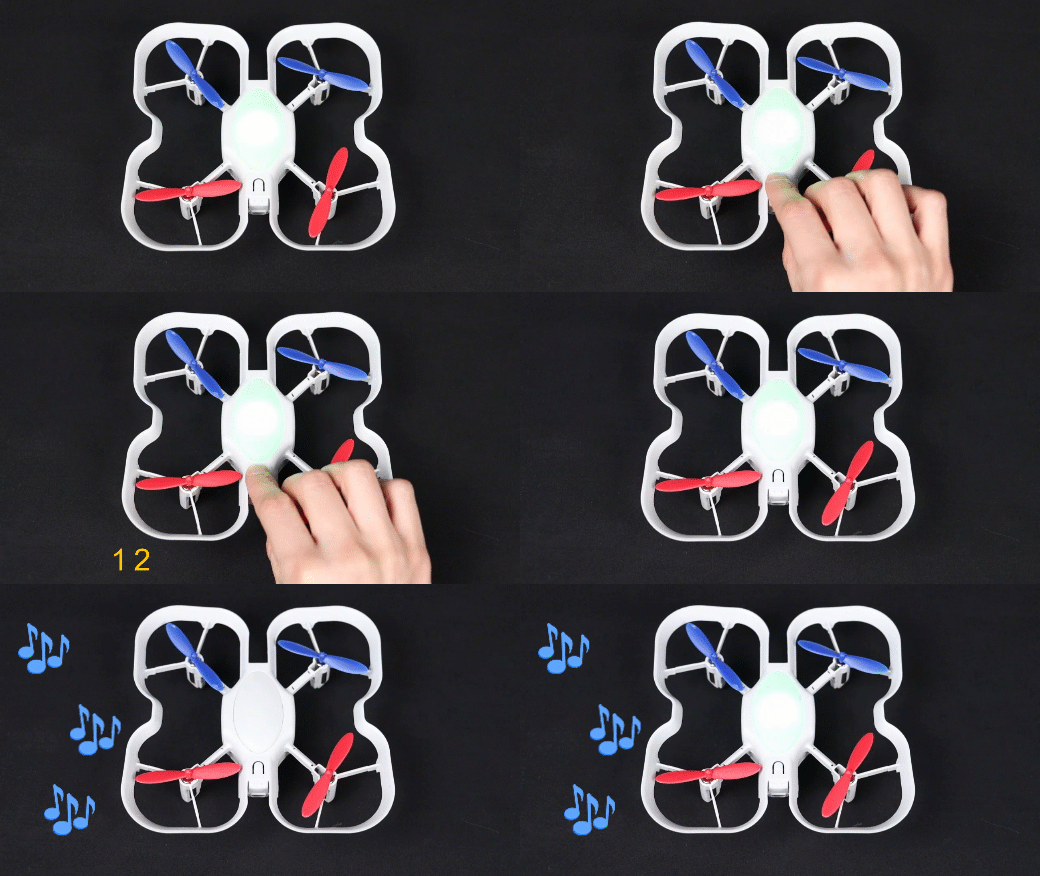
If you run into any errors on your controller that says "MOTION CALIBRATION" or "ATTITUDE NOT STABLE PLACE ON FLAT SURFACE", please reach out to us at support@robolink.com
- Trim the drone
The last thing you can do is try trimming your drone by using the directional pad on your controller or by changing the trim values in either your Blockly or Python code.
Trim using the controller buttons
Remote Controller:
You can manually adjust the CoDrone EDU's trim values using the four directional buttons located at the bottom center of the remote controller. To correct drifting, press the button in the opposite direction of the drift. For example, if the drone is drifting left, press the right directional button once or twice and let the drone stabilize. Continue adjusting the trim as needed until the drift is corrected.
Blockly:
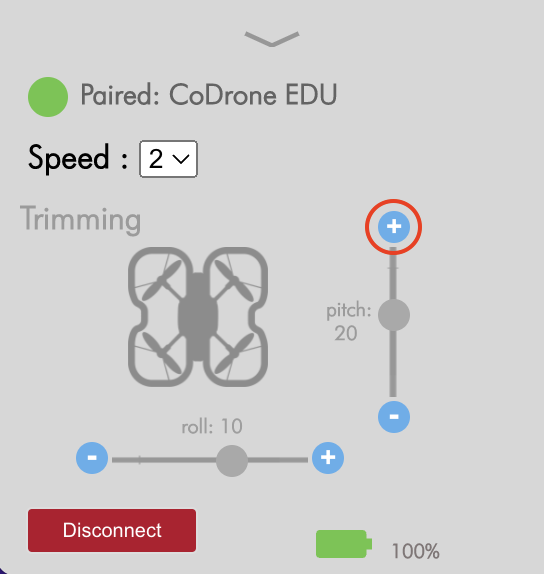
After pairing your CoDrone EDU to Blockly, the trim values can be adjusted using the sliders next to the image of the CoDrone EDU.
Python:
In order to trim your CoDrone EDU in Python, you must use the set_trim() function to set the trim values. An example code is shown below:
from codrone_edu.drone import *

drone = Drone()
drone.pair()


print(drone.get_trim())

drone.set_trim(50, 35)  # roll = 10, pitch = 20
print(drone.get_trim())

drone.reset_trim()
print(drone.get_trim())

drone.close()
