How do I navigate through the Educator Dashboard?
 Updated
by
Robolink Support
Updated
by
Robolink Support
You asked, and we delivered! We are thrilled to present the all-new Educator Dashboard.
We’ve addressed your top questions and requests:
- Student Tracking: Easily monitor student progress from a single, centralized location.
- Class Roster Upload: Upload a CSV file of your class to automatically generate student accounts.
- Classroom Management: Set up dedicated classrooms for each of your class periods.
- Correct Work Completion: Ability to mark tasks as "incomplete" if students need to make corrections or complete an assignment properly.
Curious about how to navigate these new features? Here is a helpful guide to getting started:
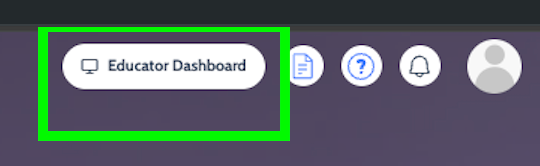
- Accessing the Hub: Head over to learn.robolink.com, log into your teacher account and then click on the “Educator Dashboard” tab.
When you are ready to add students, you can choose from four convenient methods:
- Create a class or select an existing class.
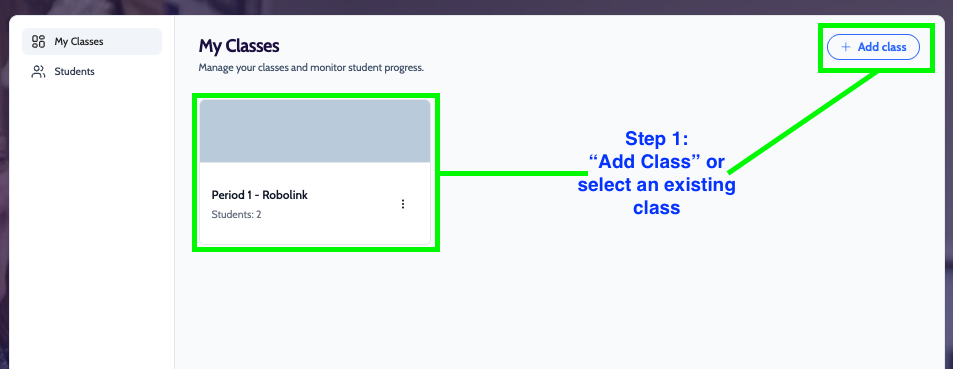
- Then select "Add students"
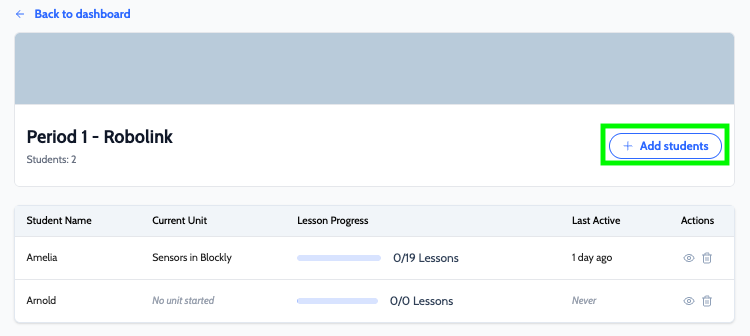
- Existing Accounts: If you already have student accounts that belong to you, you can quickly assign them to a classroom.
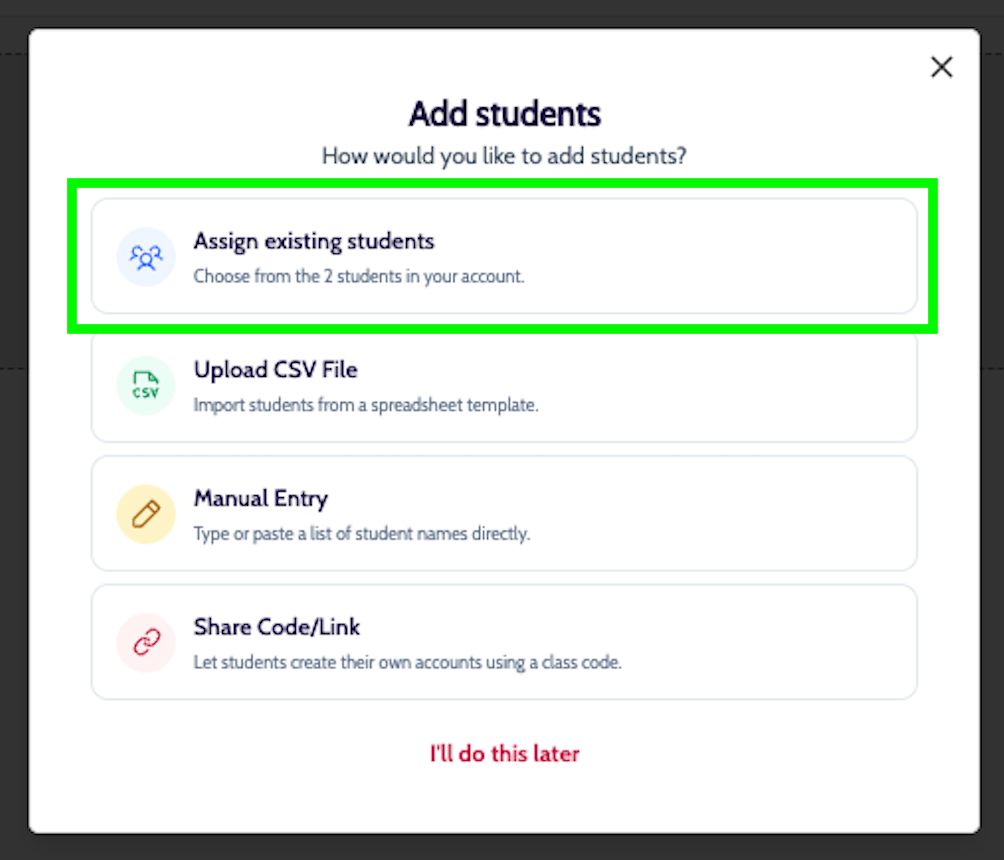
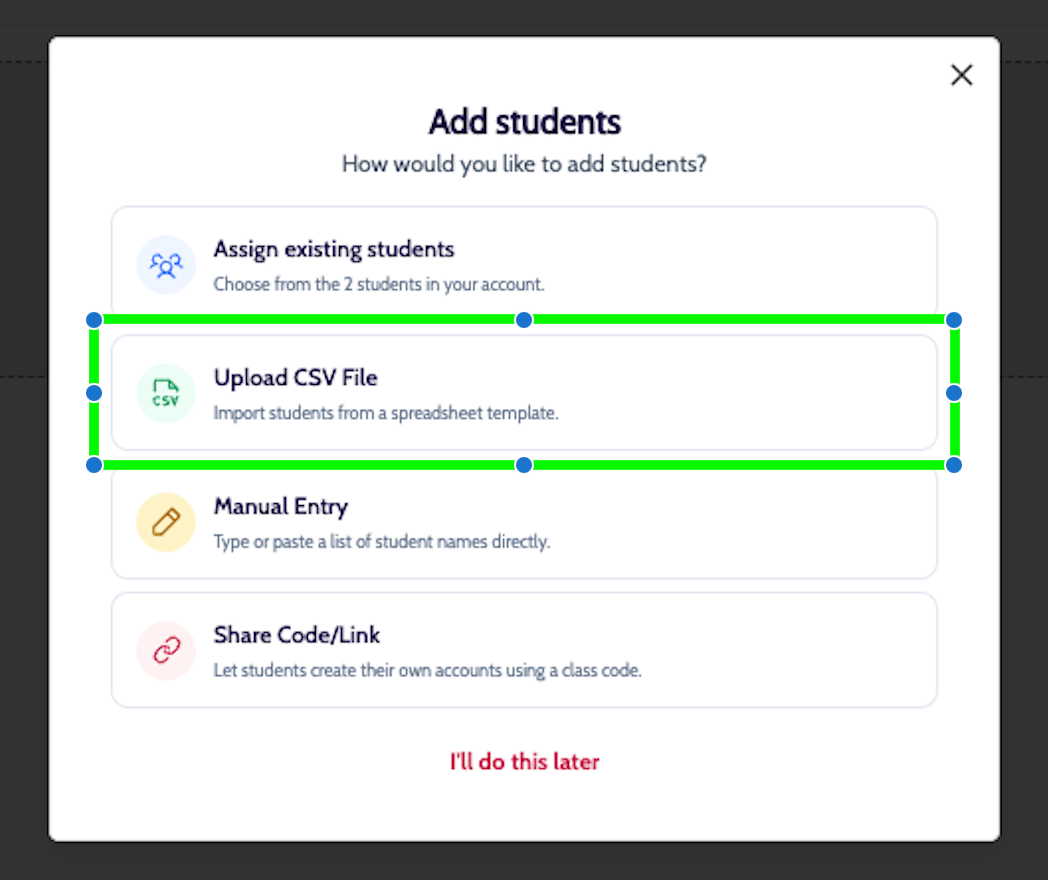
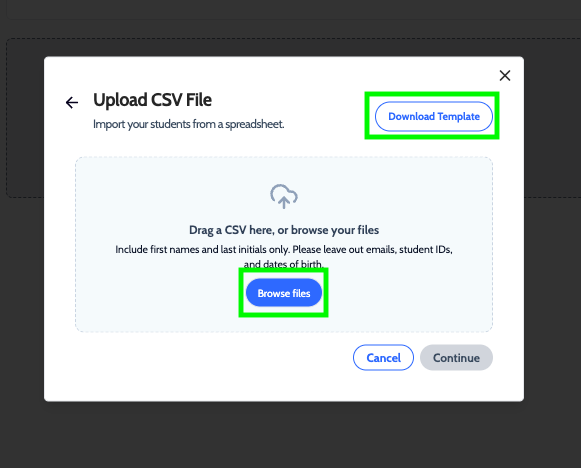
- Roster Upload: Import a CSV file to automatically generate your entire class list.
We also have a roster template file that you may use by selecting "Download Template"
- Manual Entry: Add student details one by one for smaller groups.
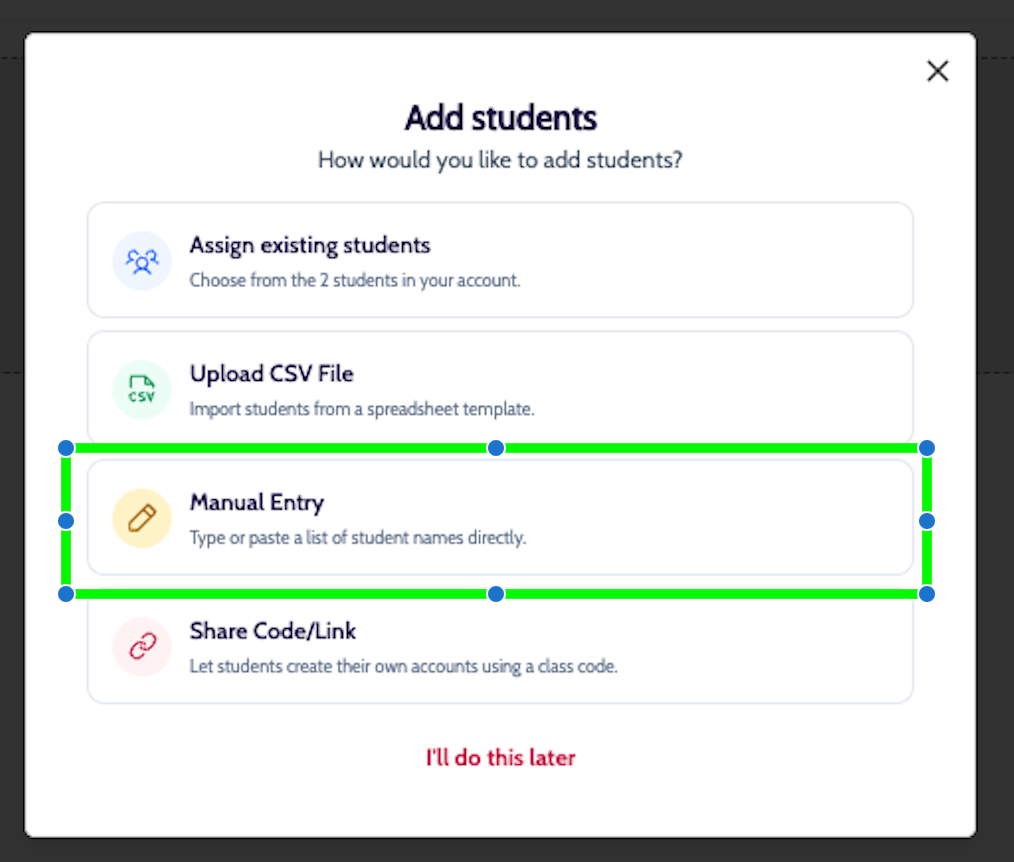
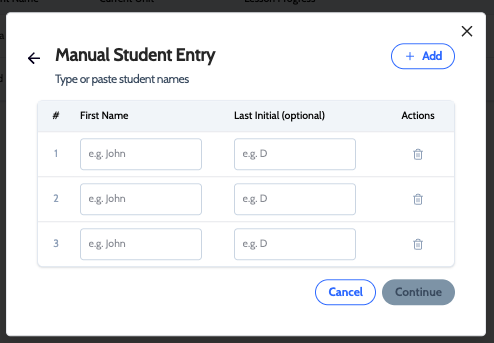
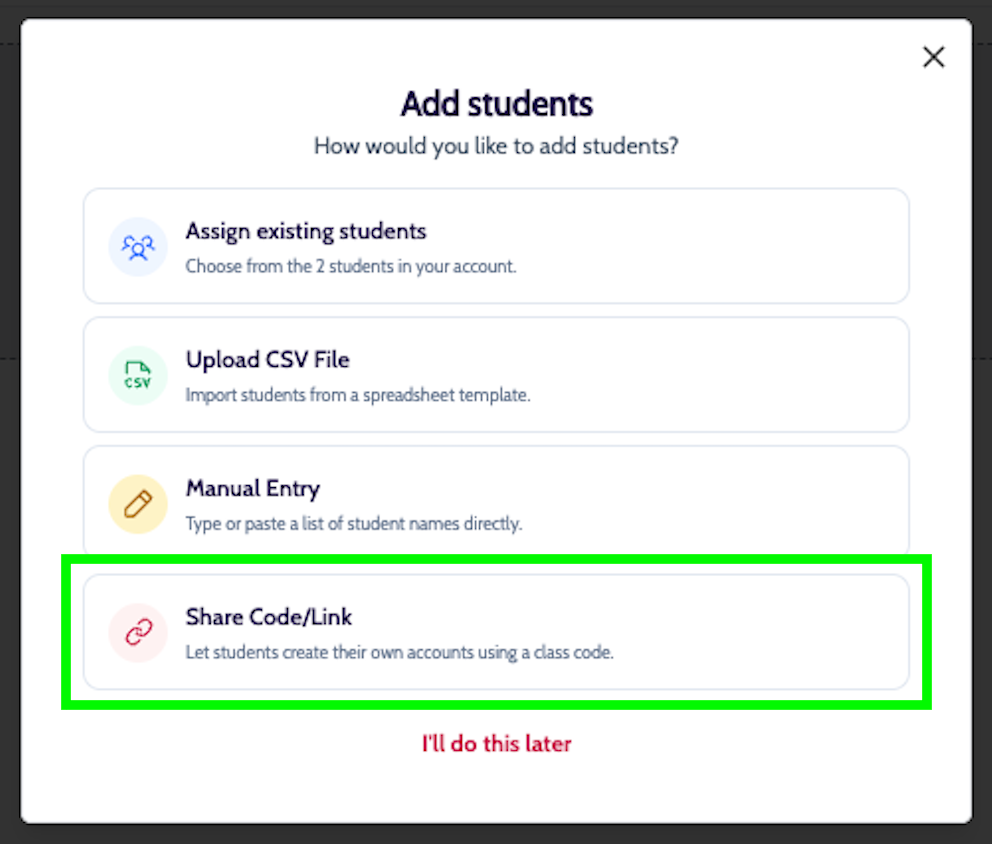
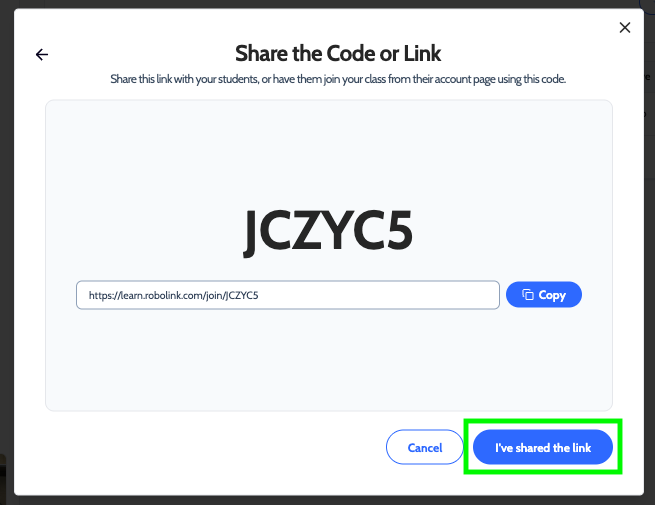
- Shared Invitation: Distribute a unique code or link for students to join directly.
You have the ability to give your students the direct URL, or if they have an account already, they can just use the code to join from their My Account page.
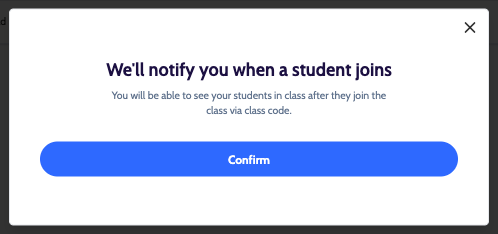
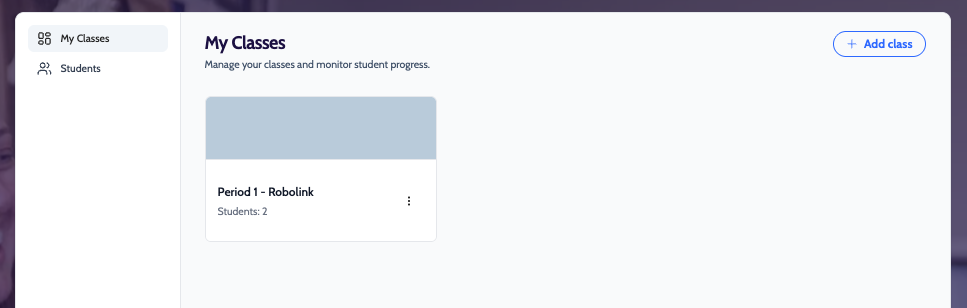
Once your roster is set, you can begin monitoring student achievement within a single view.
How do I view student progress?
- Select Class: Choose the specific group you wish to review.
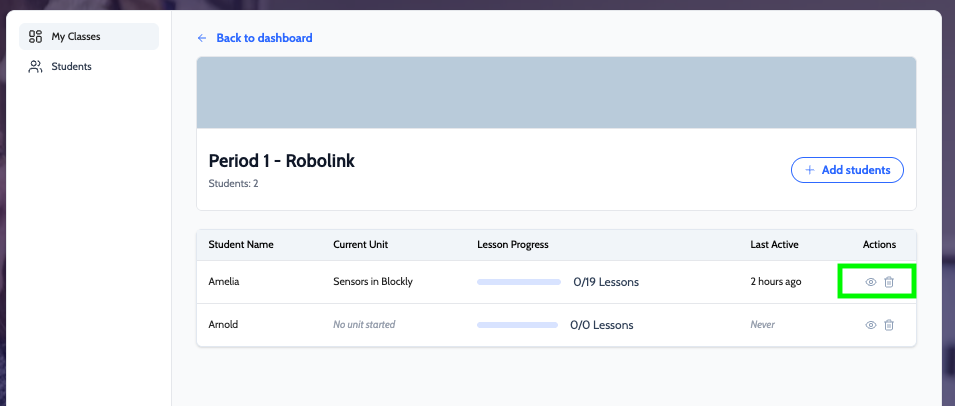
- Manage Accounts: Review individual progress by selecting the eye icon or remove accounts as needed.
To change a student's password, select Students under My Classes in the left sidebar and edit the roster.
Please note: Once student accounts are created, you can download student login cards. Because passwords are encrypted and cannot be retrieved later, please save or print these cards for your records.
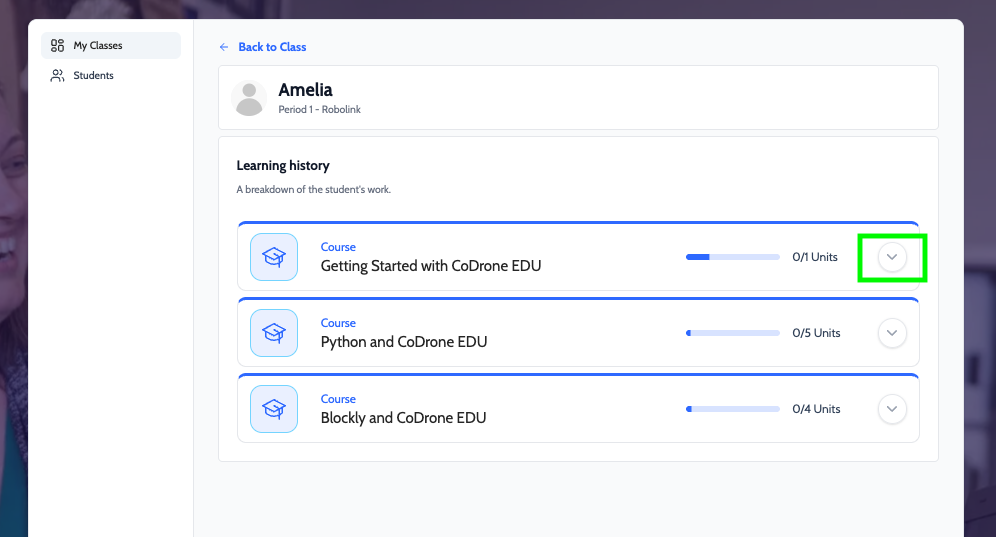
- Learning History: Access a comprehensive tracker for a deeper look at student performance by selecting the arrow down icon.
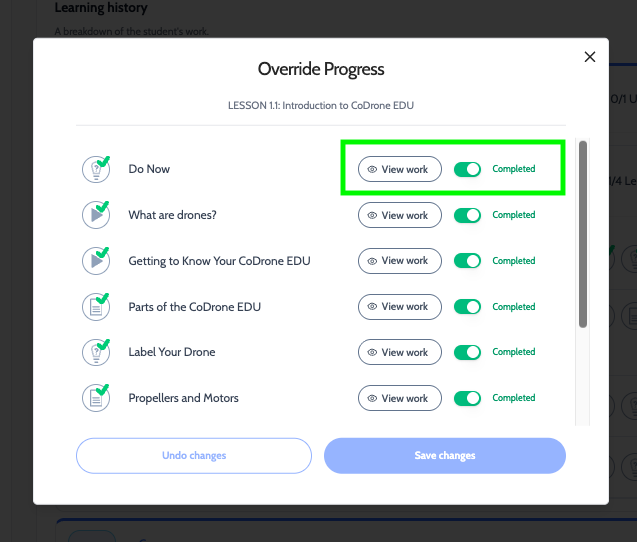
- Detailed Review: Click the pencil icon on any lesson to examine specific student progress and submissions.
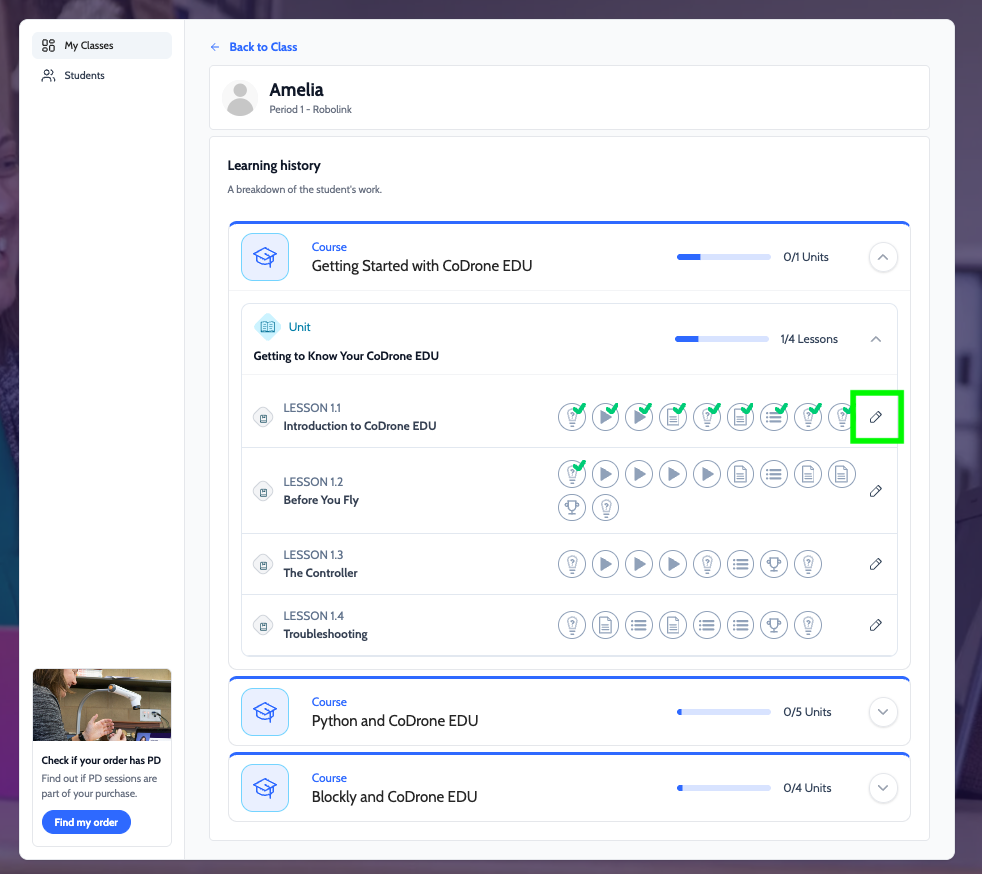
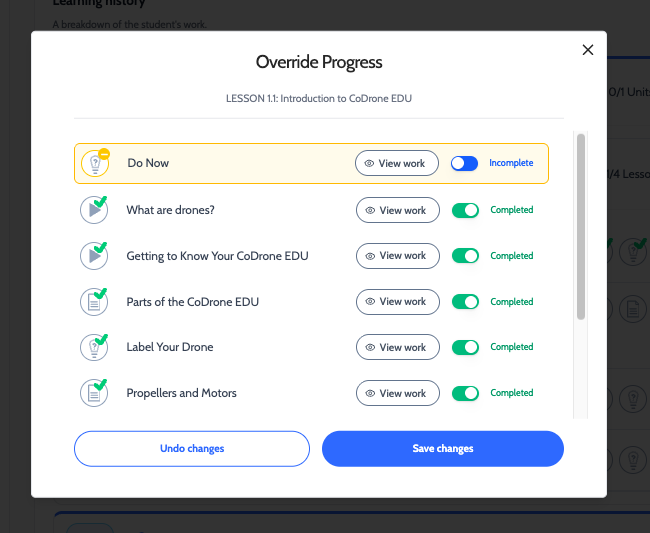
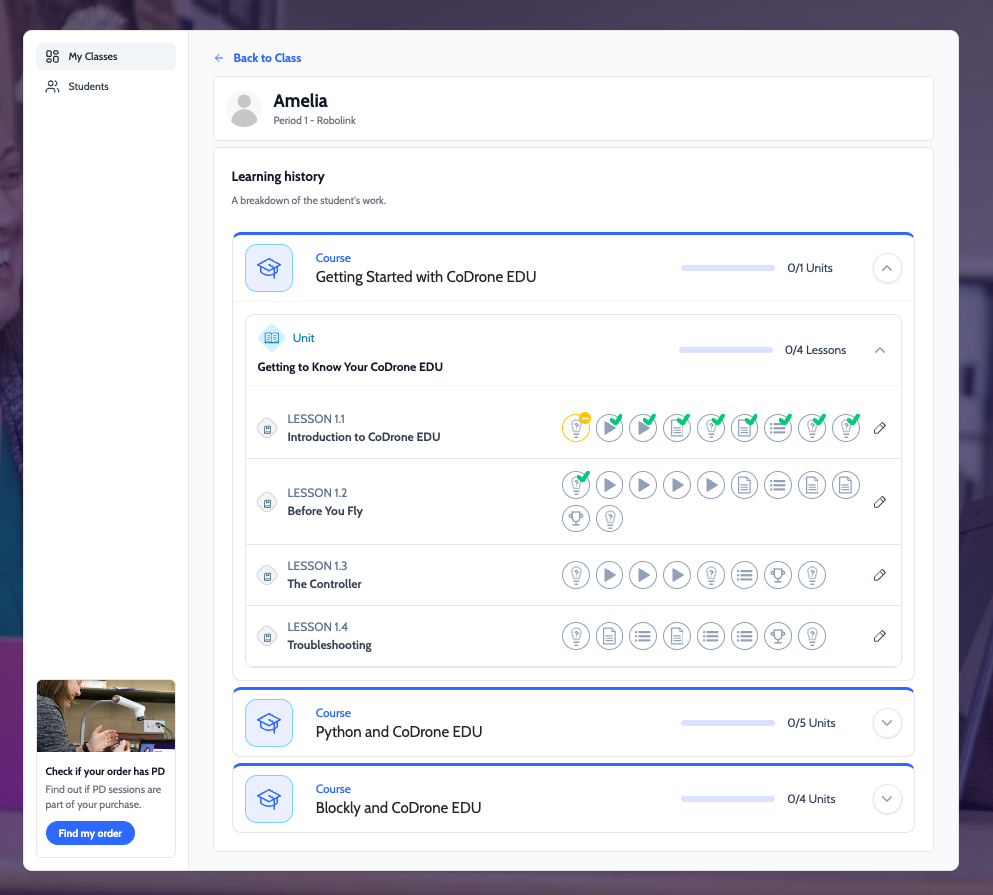
- Un-complete Activities: If an assignment requires more work, simply toggle the “complete” button to mark it as “incomplete.”
Students will need to re-complete a lesson that's been marked "incomplete" by an Educator account
That covers the essentials of your new Educator Dashboard!
Email us at support@robolink.com with any further inquiries.
