Why does my CoDrone EDU keep losing connection to the controller?
 Updated
by
Robolink Support
Updated
by
Robolink Support
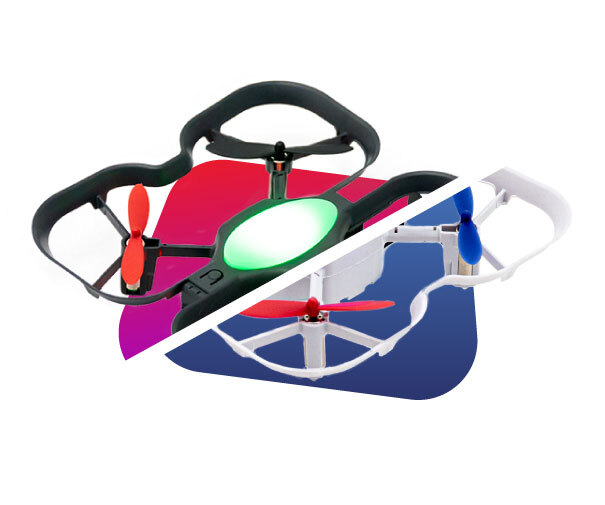
Whether you’re piloting manually or flying autonomously, it can be frustrating when your CoDrone EDU suddenly disconnects from the controller. While occasional signal drops can happen, there are several preventable causes and troubleshooting steps that can help maintain a stable connection.
This guide will walk you through the most common reasons and how to fix them.
- Firmware Compatibility
First and foremost, make sure both your drone and controller are running the latest firmware versions. We’ve addressed known connectivity bugs in recent firmware updates.
Please follow this link to our Online Firmware Updater
- Check Your Power Sources
Controller Batteries (AA or Drone Battery):
Low or dying AA batteries can cause your controller to intermittently lose its connection to the drone. Make sure all batteries are fully charged before starting your flight session.
For those using the JROTC Edition controller, be sure that the drone battery, which powers the controller, is both charged and properly inserted.
Tip: You can check the controller’s battery level in the top right corner of the screen.
Drone Batteries:
If your controller is connected via USB (instead of AA batteries), insufficient power from your computer or power bank can disrupt the connection.
Your USB port or power source should provide at least 5V / 0.5A to keep the controller powered reliably. If your laptop is running low on battery, it may not supply enough voltage through the USB port, which can cause connectivity issues. To resolve this, try switching to a different USB port, using a different power source (like a wall adapter or power bank), or simply plug your laptop into a power outlet to ensure a consistent power supply.
- USB Power Issues
If your controller is connected via USB (instead of AA batteries), insufficient power from your computer or power bank can disrupt the connection.
Your USB port or power source should provide at least 5V / 0.5A to keep the controller powered reliably. If your laptop is running low on battery, it may not supply enough voltage through the USB port, which can cause connectivity issues. To resolve this, try switching to a different USB port, using a different power source (like a wall adapter or power bank), or simply plug your laptop into a power outlet to ensure a consistent power supply.
- Optimize Your Signal
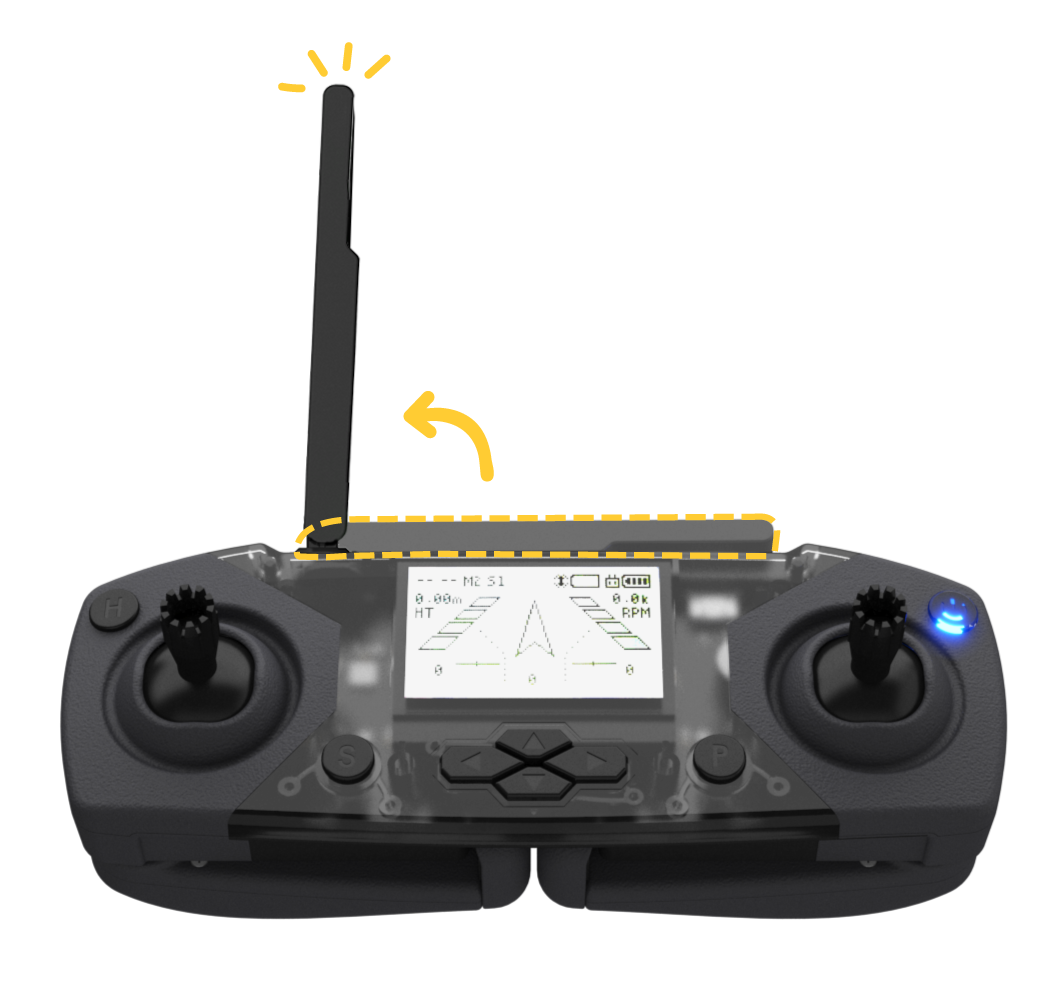
Fully Extend the Antenna:
Make sure the controller antenna is fully extended and pointed in the general direction of your drone. Do not rotate the antenna, simply pull it straight up to position it correctly for optimal signal strength.
Maintain Line of Sight:
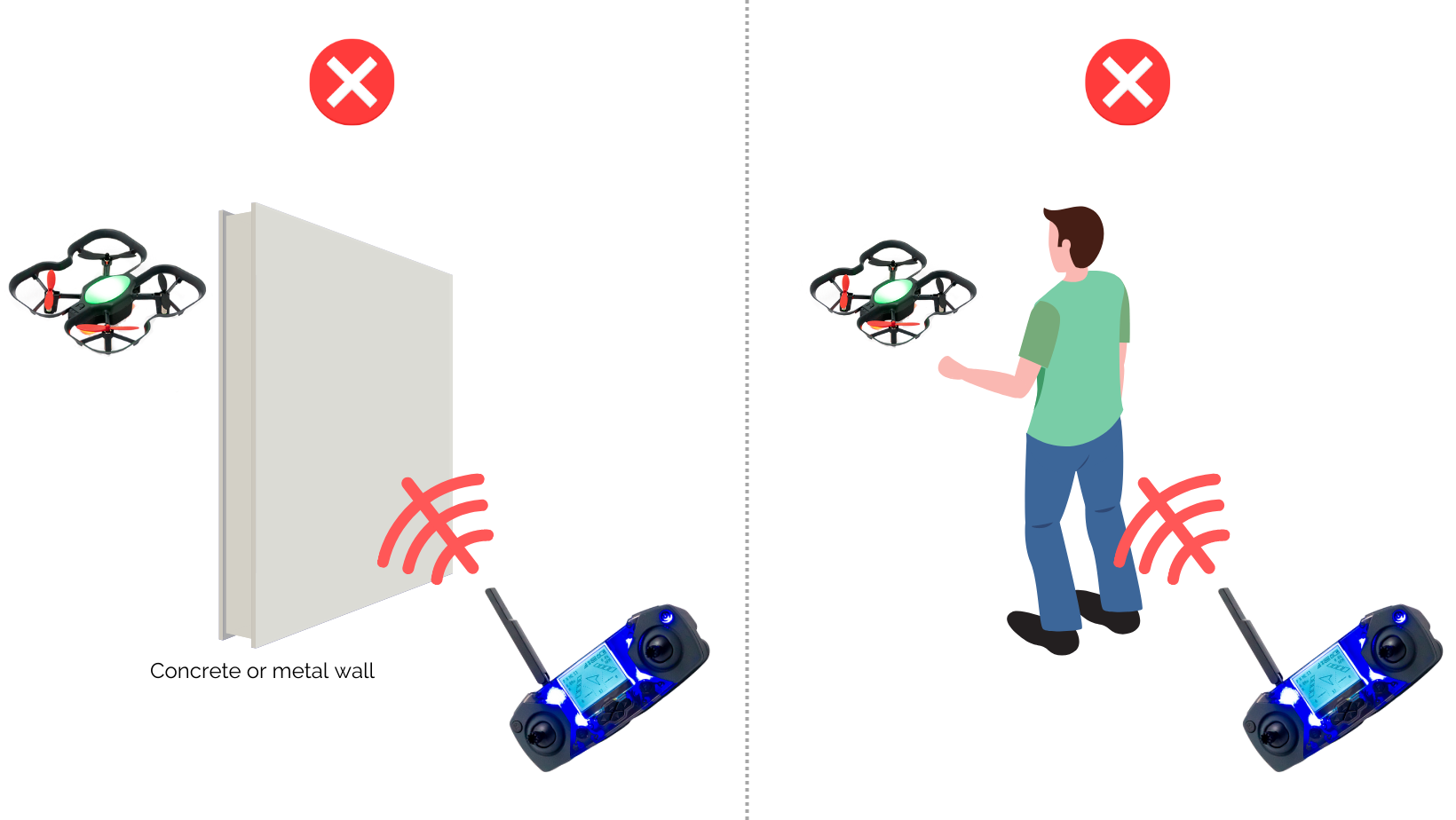
The controller should always have a clear line of sight to the drone. Avoid flying:
- Behind walls or people
- Near reflective surfaces (e.g., glass, metal, water)
- In tight spaces with signal interference
Make some space!
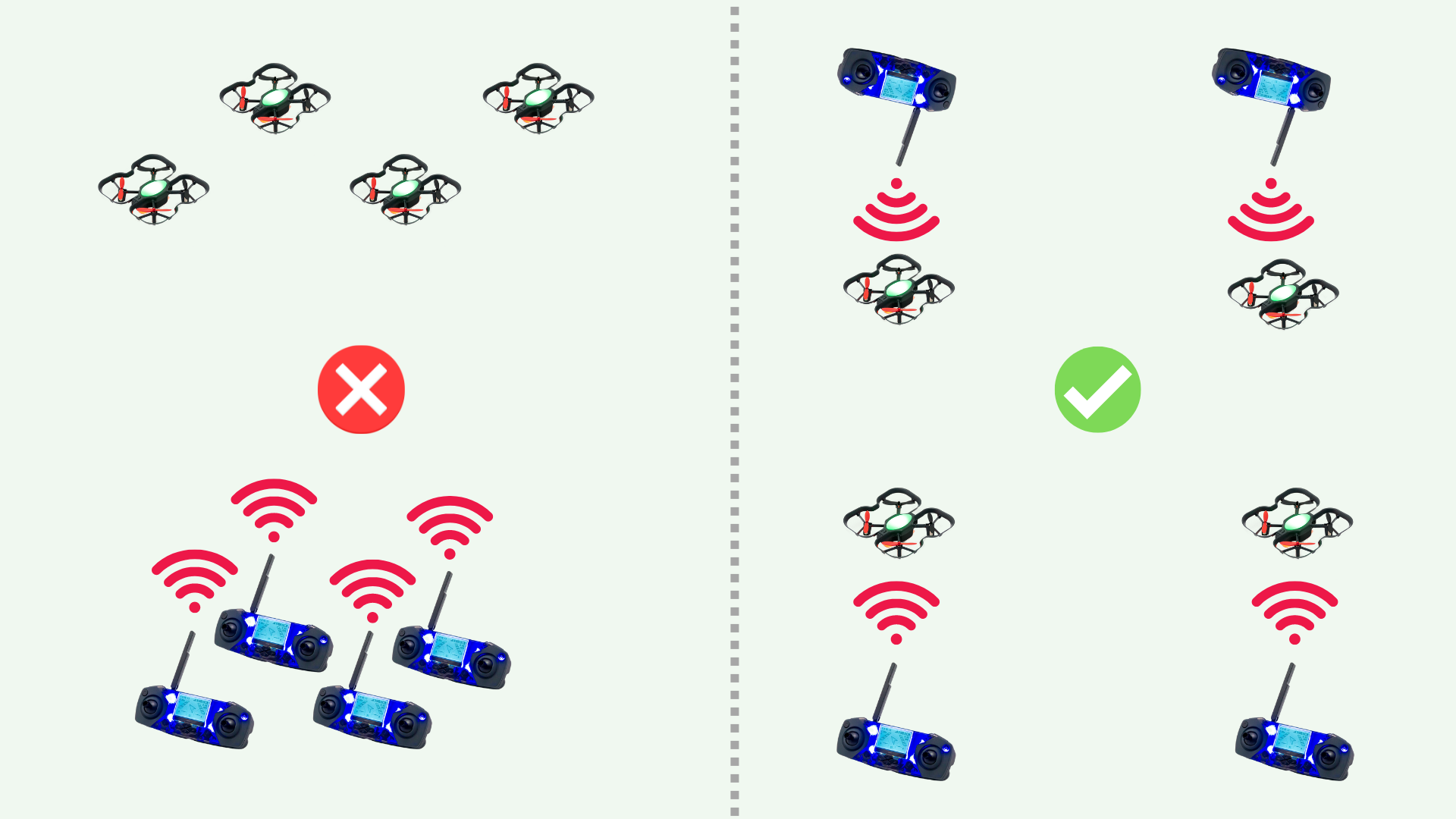
If you're flying multiple drones, spread them out. Clustering controllers and drones together can cause signal interference.
- Inspect for Hardware Damage
Controller Antenna:
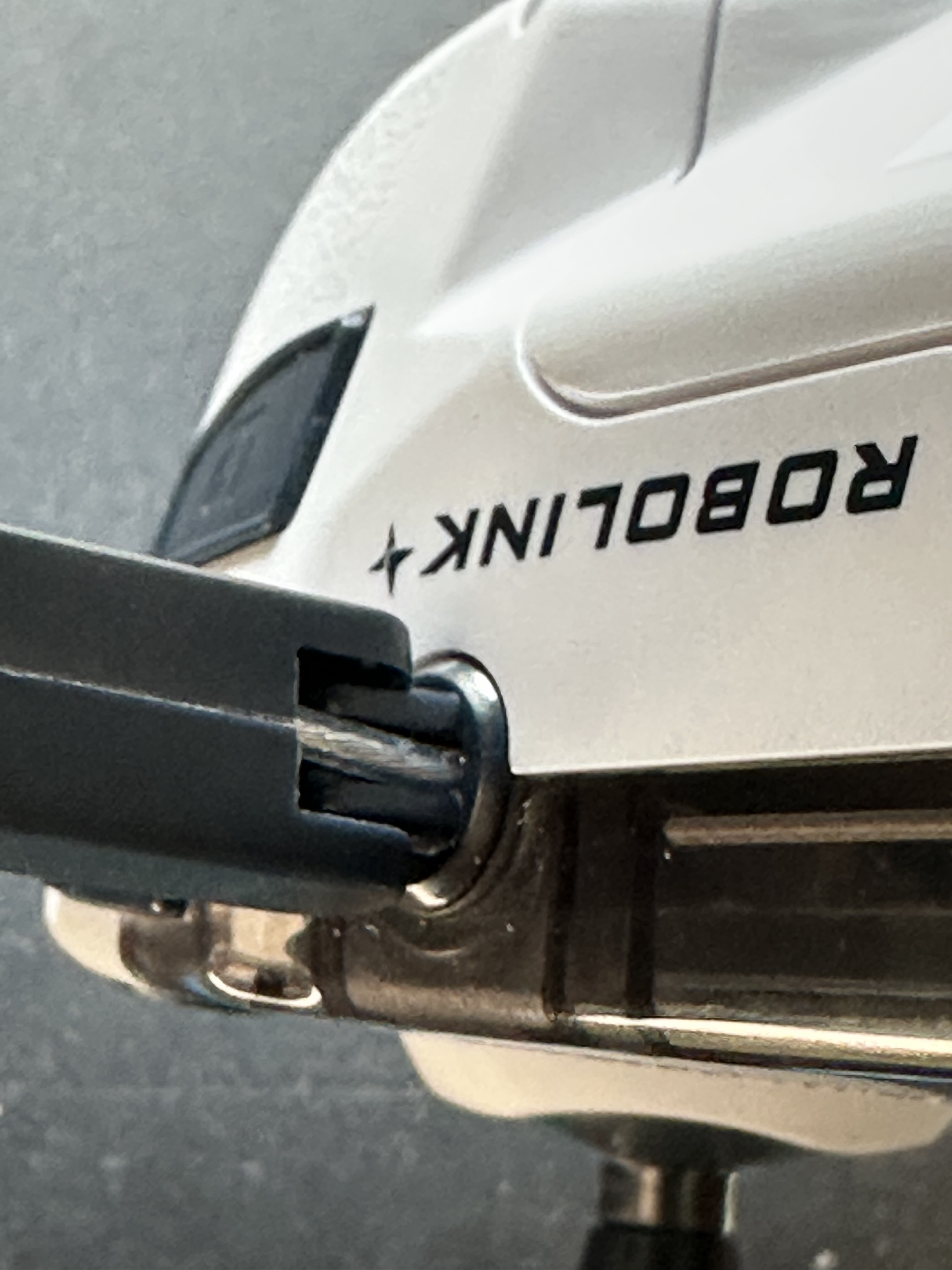
Check the base of the antenna for a loose or missing wire. If the internal wire is damaged, the controller won’t operate at full range. Avoid over-rotating or forcefully bending the antenna to prevent damage. If your antenna wire appears damaged or missing, contact support@robolink.com.
- Avoid Command Overload
Switching between Blockly, Python, or manual control too quickly can overload the drone’s communication system.
Tips:
- Always disconnect your drone from Blockly or Python before switching modes.
- Use the stop button in your coding environment to ensure no programs are running in the background.
- Avoid running back-to-back commands without appropriate delays.
If none of the above steps resolve your connection issues, send a video of the behavior to support@robolink.com along with:
- Your controller and drone firmware versions
- A photo of your controller antenna (if suspected damaged)
- A description of when and how the connection is dropping
We’ll help get you back in the air as soon as possible!
