Why does my CoDrone EDU code run differently each time?
 Updated
by
Robolink Support
Updated
by
Robolink Support
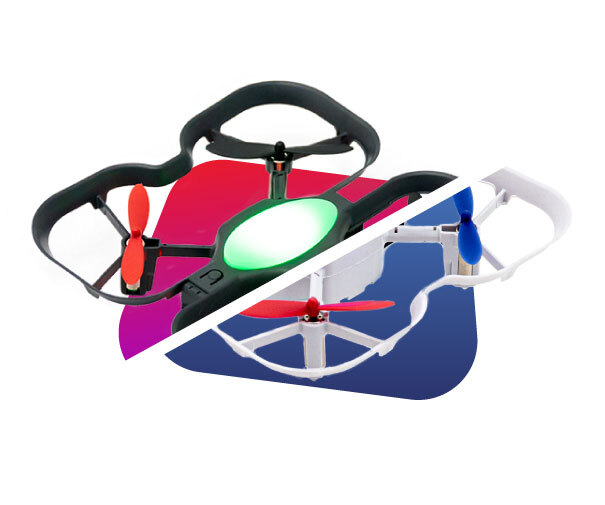
It can be frustrating when your CoDrone EDU doesn’t behave exactly the same way each time you run your code. While this can feel like something’s wrong, a bit of variation is completely normal. CoDrone EDU is designed to be an affordable and educational tool, which means it doesn’t use the same high-end sensors and hardware found in professional drones.
These natural limitations, along with environmental and hardware factors, can affect how your drone performs. These factors can include:
Battery Level & Quality
- A lower battery percentage can affect motor performance and flight stability.
- Older batteries may not hold power as well as new ones.
- Even fully charged batteries can vary slightly in voltage, which can impact flight behavior.
The battery level shown in Blockly, Python, or on the controller reflects voltage, not actual battery capacity, which can fluctuate during flight. For more details on that, please read this article: Why does my CoDrone EDU battery level change rapidly at times?
Sensor Limitations
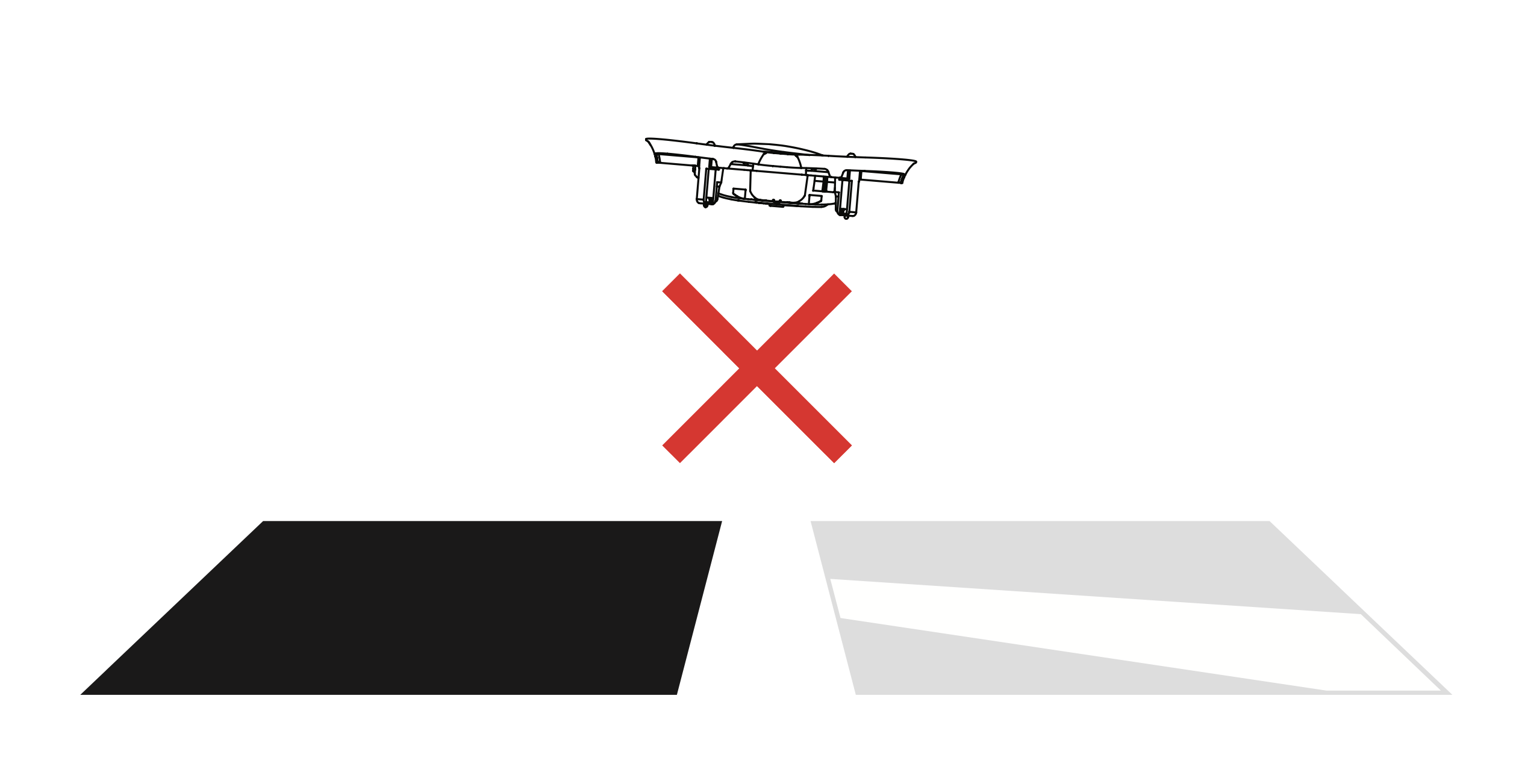
The drone’s optical flow sensor (located on the bottom) helps stabilize flight by tracking patterns on the surface beneath it. Because of how it works, there are some important limitations to be aware of:
- Surface dependency: The sensor relies on recognizing unique, visible patterns. Smooth, uniform, highly reflective, or very dark floors can confuse the sensor, causing drift or unstable hovering.
- Best practice: Always fly over a surface with clear, distinct patterns. We recommend using the Robolink Programming Mat, available on our website, since it provides an ideal surface with unique patterns for the sensor to lock onto. Any similarly patterned surface can also help.
- Lighting conditions: Low light or glare can reduce the sensor’s ability to detect movement. Make sure the flying area is evenly lit.
- Altitude range: The optical flow sensor works best at lower altitudes (typically under 2 meters). At higher altitudes, the sensor may not be able to detect the surface reliably.
By providing a patterned, well-lit surface beneath the drone, you’ll help the optical flow sensor perform at its best and reduce issues with drift or inconsistent flight behavior.
Speed Settings
CoDrone EDU has three flight speeds. You can check the current speed of the drone in two places:
- On the top-left of the controller screen in flight mode
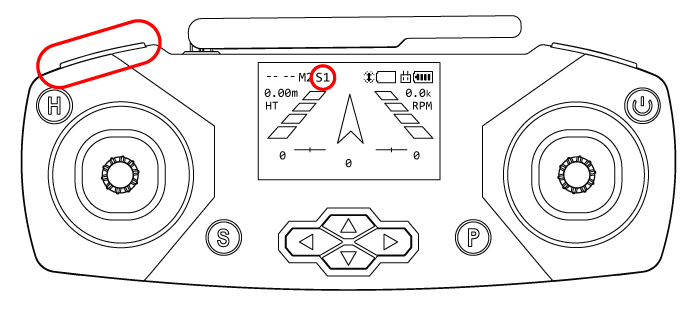
- In Blockly/Python, in the connection window
When you first connect to Blockly, it defaults to Speed 2. Always confirm your speed matches the intended speed for your code.
Code Timing & Complexity
- Make sure you're using proper syntax, including delays where needed.
- Test your code in smaller sections to isolate and troubleshoot issues more easily.
When working with more complex code, especially those that include loops, conditionals, or back-to-back flight commands, it’s important to include delays between actions. These pauses give the drone time to complete each movement and help maintain flight stability.
Physical Wear & Tear
- Repeated use, crashes, or misaligned motors can lead to drifting or inconsistency.
- Try replacing worn motors and recalibrating your gyroscope to assist with drifting inconsistencies.
To learn about how to recalibrate your gyroscope please follow this article How do I stop my CoDrone EDU from drifting?. If additional motors or other accessories need to be purchased, you can find more on our website www.robolink.com
If you need help optimizing your drone's performance or would like more troubleshooting tips, feel free to reach out to support@robolink.com. We're here to help!
