How do I update my firmware on my controller and drone?
 Updated
by
Robolink Support
Updated
by
Robolink Support
Attention:
As of 10/29/2026, we have changed our version numbering system from using dates to a numbered version.
For example, v1.0.11 is the latest version for the CoDrone EDU's (JROTC edition) drone firmware. The build date will always be available if you would like to check.
Current Firmware Versions - CoDrone EDU
Drone: 26.4.14
Controller: 25.2.1
Current Firmware Versions - CoDrone EDU (JROTC Edition)
Drone: 1.0.11
Controller: 24.12.1
As of 10/29/2026, we have changed our version numbering system from using dates to a numbered version.
For example, v1.0.11 is the latest version for the CoDrone EDU's (JROTC edition) drone firmware. The build date will always be available if you would like to check.
Current Firmware Versions - CoDrone EDU
Drone: 26.4.14
Controller: 25.2.1
Current Firmware Versions - CoDrone EDU (JROTC Edition)
Drone: 1.0.11
Controller: 24.12.1
To check for updates, connect your controller to your computer after it has been paired with your drone and placed in LINK mode. In the “Drone Connection” tab, look for yellow warning triangles (⚠️) next to your drone or controller firmware—this indicates that an update is required.
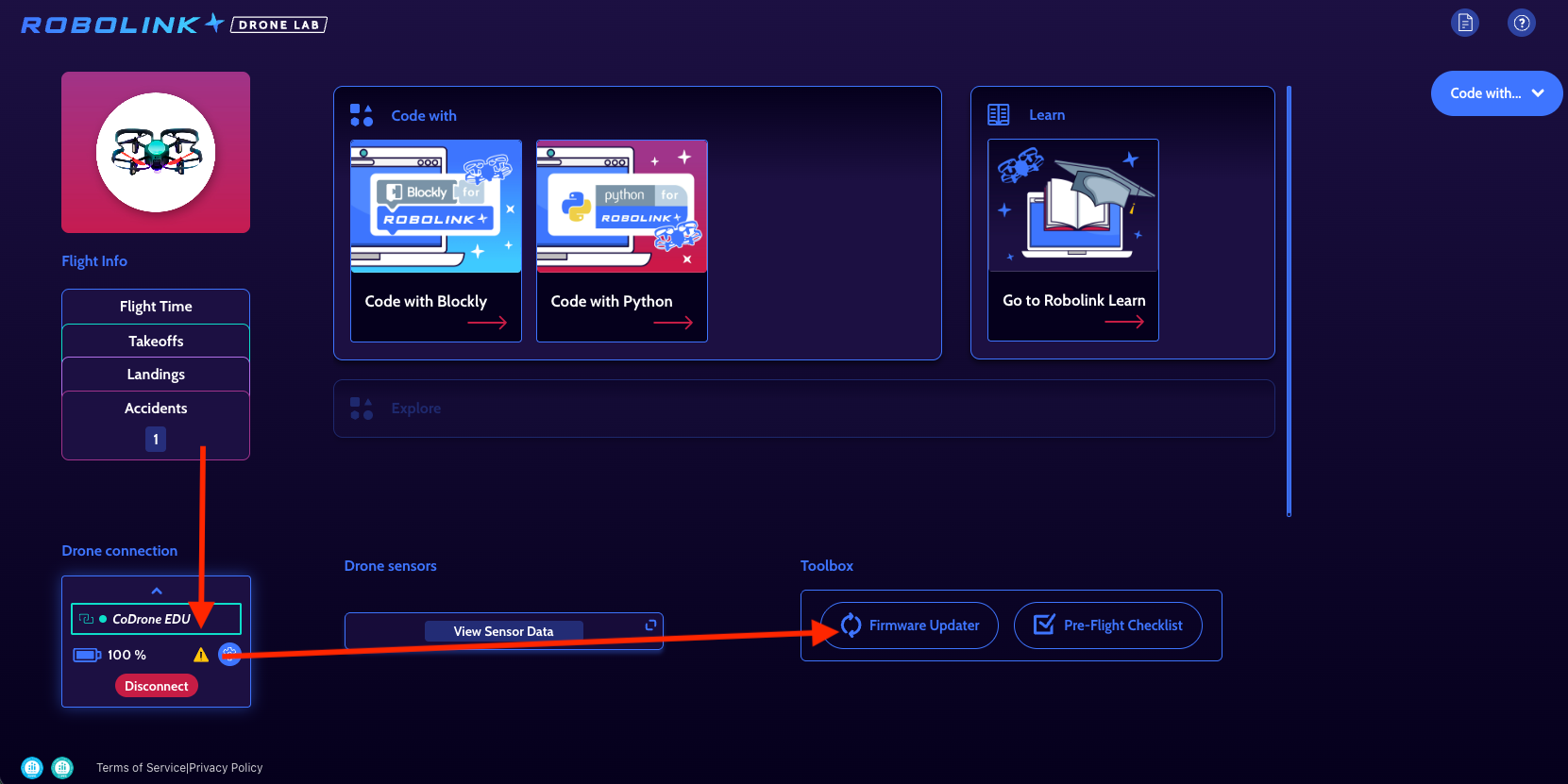
Next, click the “Firmware Updater” button in the bottom-right corner of Drone Lab. This will take you to the firmware landing page, where you can select your drone model.
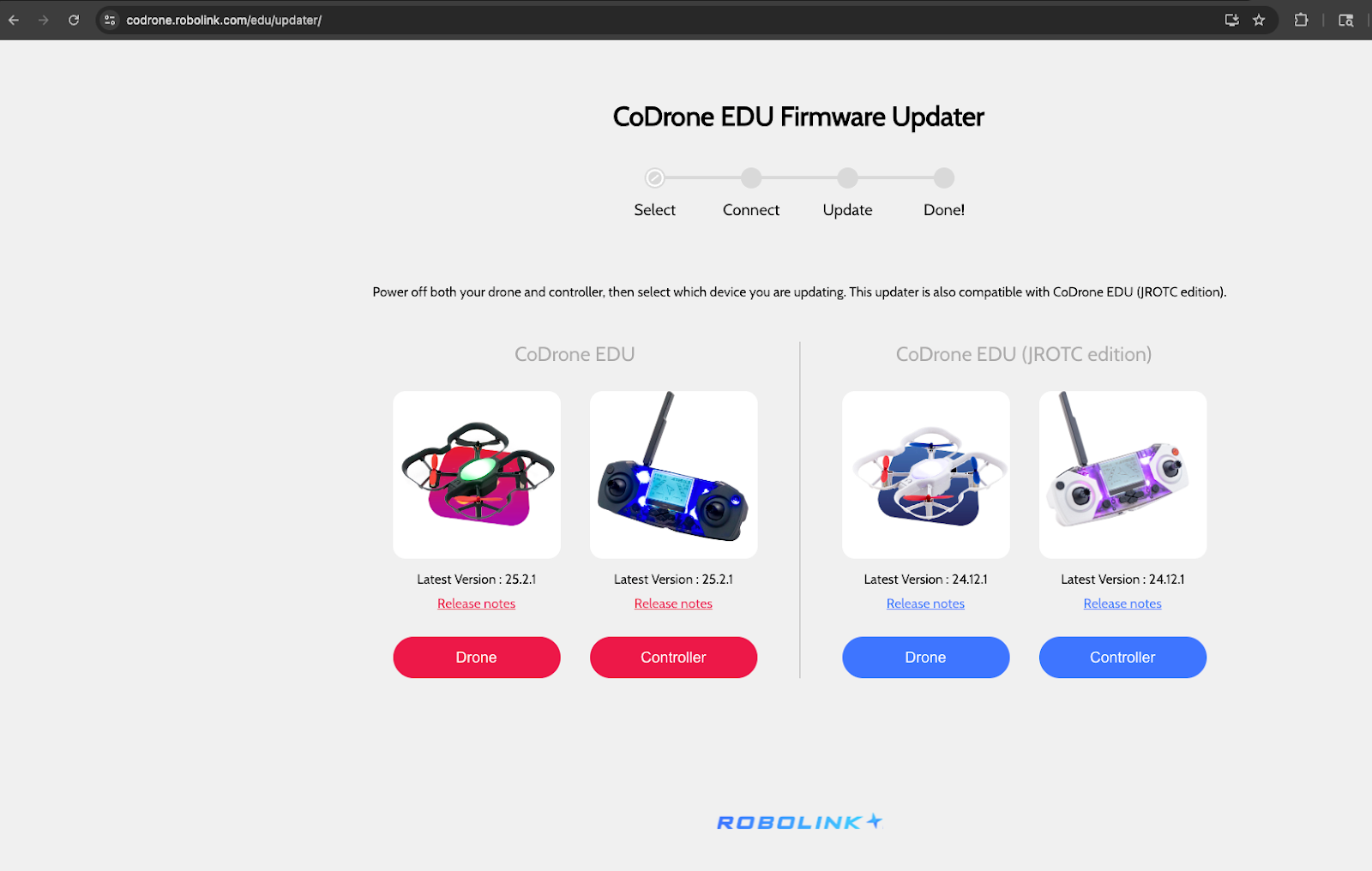
From there, choose whether you want to update your drone or controller first, and follow the on-screen instructions.
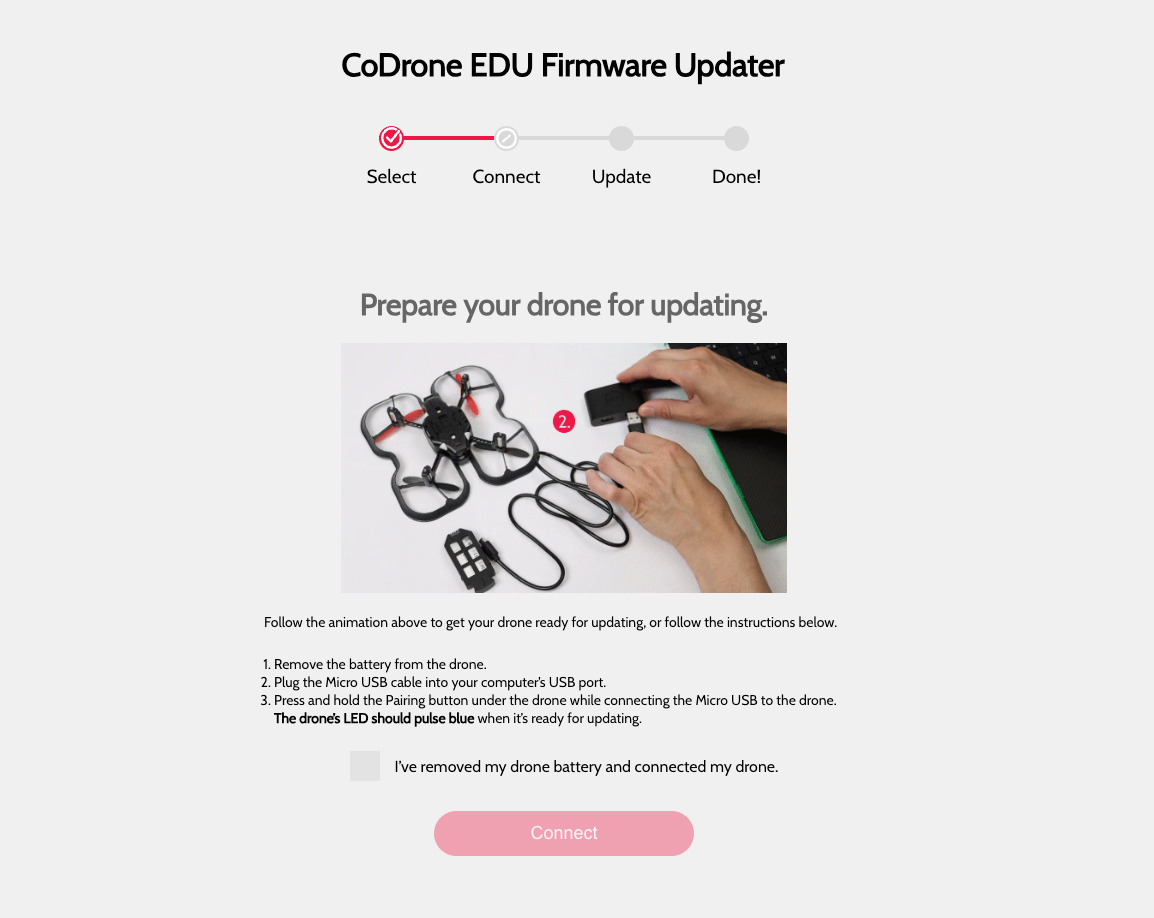
Tips for when updating the drone:
- A mistake that is seen often is by pressing the “action button” at the top of the drone when updating the firmware instead of the “pairing button” at the bottom of the drone.
- Remove the battery from the drone first then hold down the pairing button and then insert your cable.
If you have any questions, please feel free to reach out to support@robolink.com
