How do I save my CoDrone EDU code in Blockly?
 Updated
by
Robolink Support
Updated
by
Robolink Support
While Blockly may appear to retain your code when you reopen it the next day, this is not a reliable way to save your work. This happens because your browser temporarily stores the code in its cache, but this storage is not permanent and can be cleared at any time due to browser updates, settings, or device restarts.
To ensure your code is properly saved and accessible when you need it, please follow the steps below. This applies to color data as well.
Part 1: Saving your code (Blocks in the workspace)
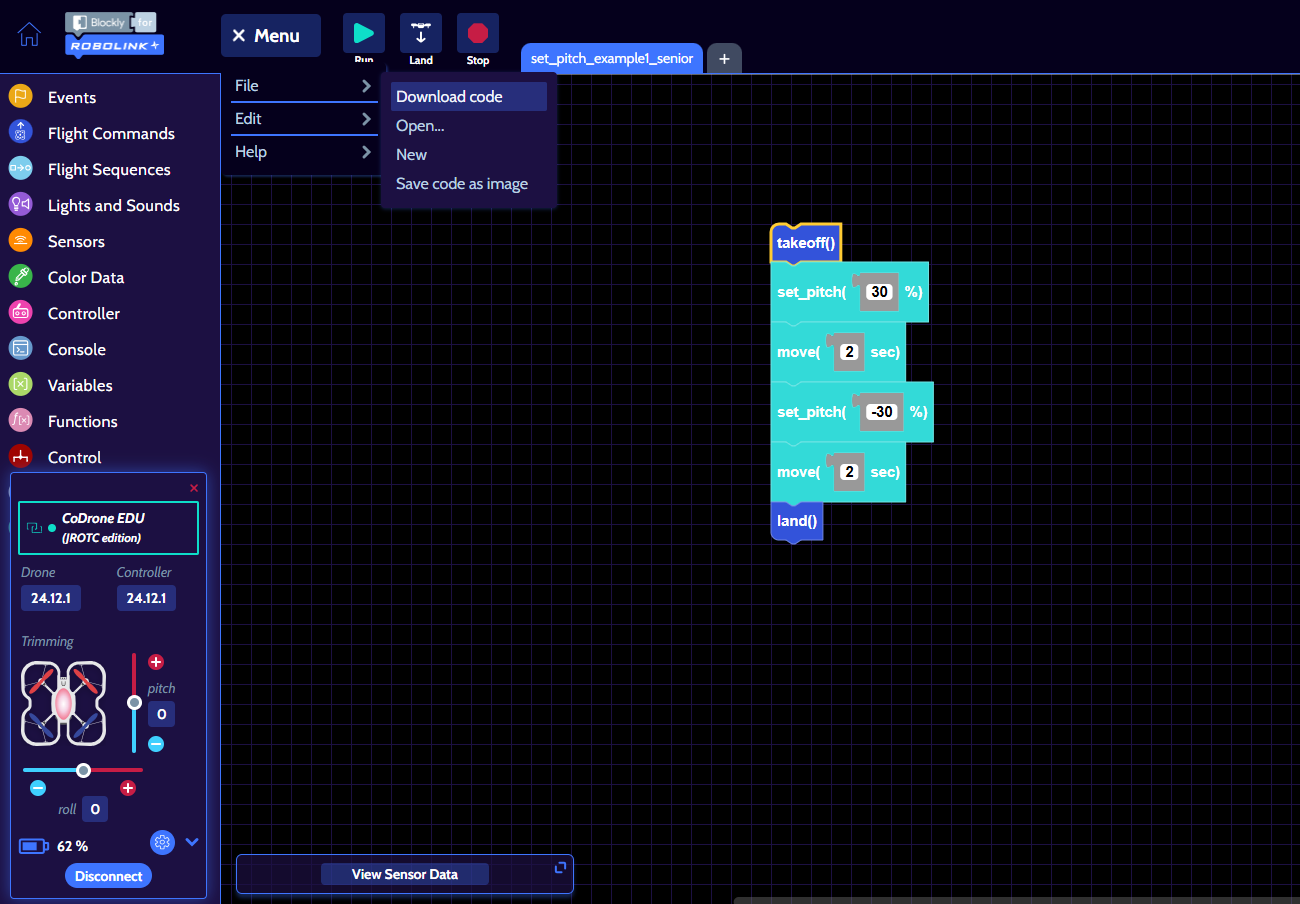
- To save the code blocks currently on your workspace, open up the menu on the top left hand side. Hover over the word "File" and then click "Download Code"
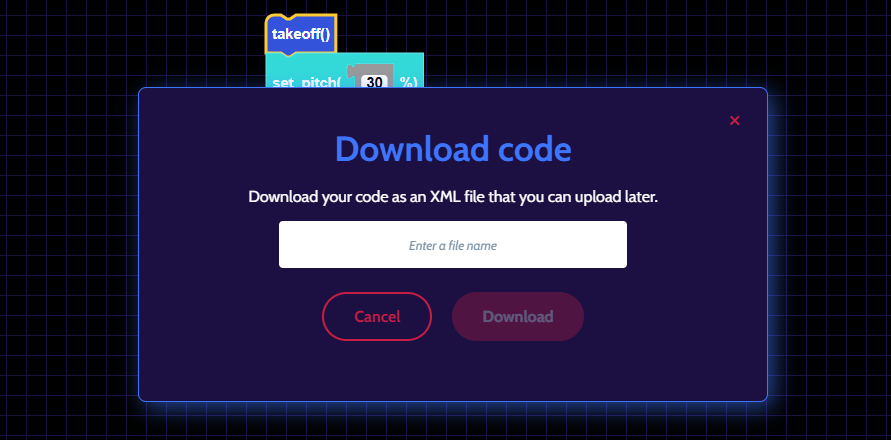
- A pop-up window will appear, allowing you to name your file. After entering a name, click "Download"
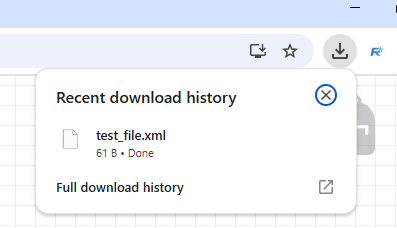
- You will then see the code download directly to the computer as an “.XML” file into your downloads bar at the top right of your browser. It can also be found in your Downloads folder. This is a text file that contains all the information for the blocks that were on the screen.
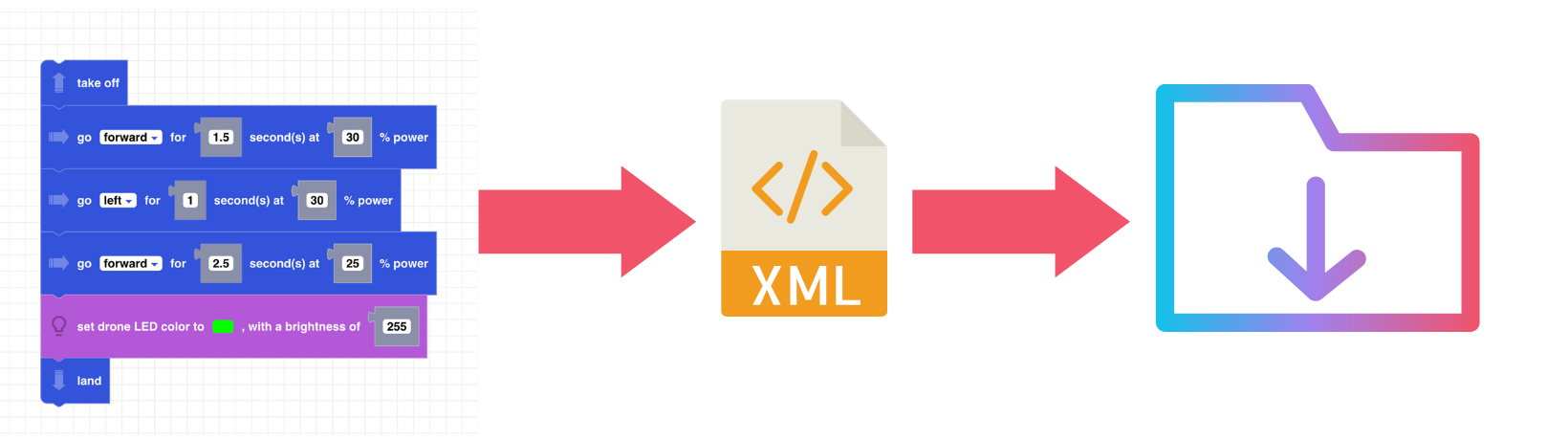
Clicking on these downloaded XML files will not automatically open your code in Blockly. To open a previously saved program, select 'Open' from the same menu and locate the file on your computer. If you have multiple tabs open in your Blockly Workspace, you will need to download each file individually. Follow the same process and before and be sure to name them accordingly!
Part 2: Saving color data
For similar reasons relating to technical limitations of saving data in the browser, any color data files that you uploaded into the workspace cannot be saved in the browser when you re-open Blockly. You must download your data if you want to be able to use it again in another program.
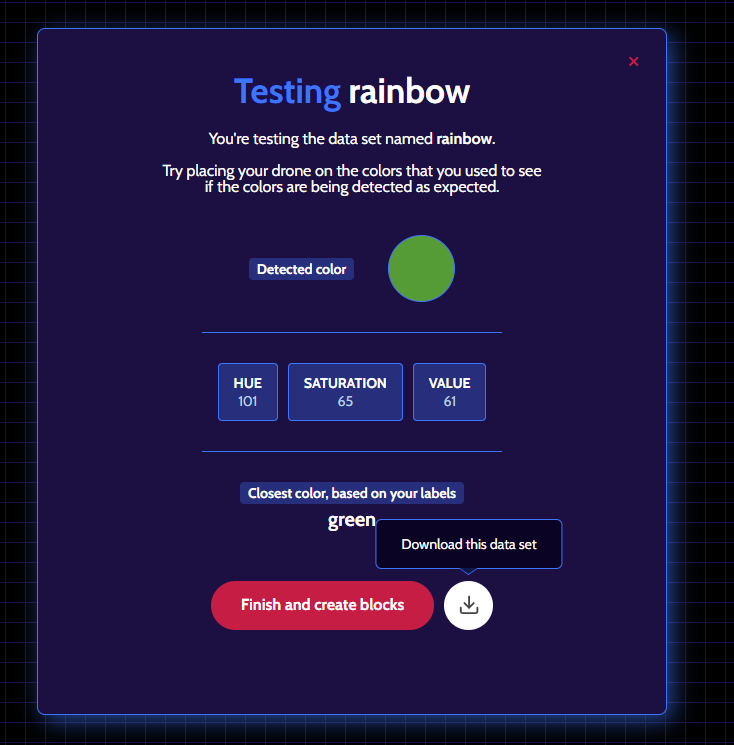
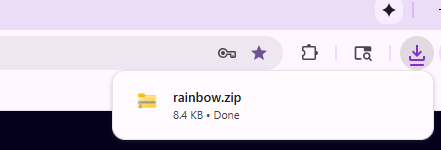
To download, click on the down arrow on the right hand side next to "Finish and create blocks". This will also download into your downloads folder as a zip file. In order to use these colours again, you will need to unzip the folder before you upload them to blockly.
For more information about working with the color sensor with Blockly you can go to this lesson.