How do I connect to Blockly, and what should I do if it won’t connect?
 Updated
by
Robolink Support
Updated
by
Robolink Support
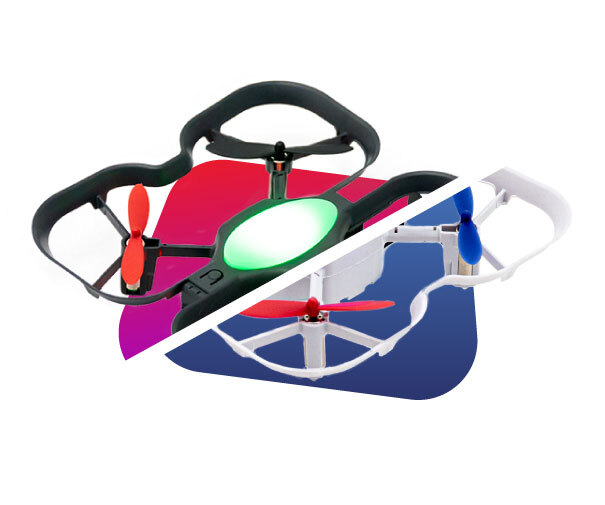
CoDrone EDU can be programmed using Blockly, our visual block-based programming language similar to Scratch! If you want to use Blockly to program your CoDrone EDU, first make sure your controller and drone are paired together. Then, follow the steps below. No installations are necessary - just an up-to-date Chrome browser.
Connecting Your CoDrone EDU to Blockly
- Open Blockly in a Chrome browser. Make sure it is up to date!
- Click on the CoDrone EDU icon upon entering the Blockly Website
- Using the cable from your kit, connect to your drone to the computer via the USB cable ports.
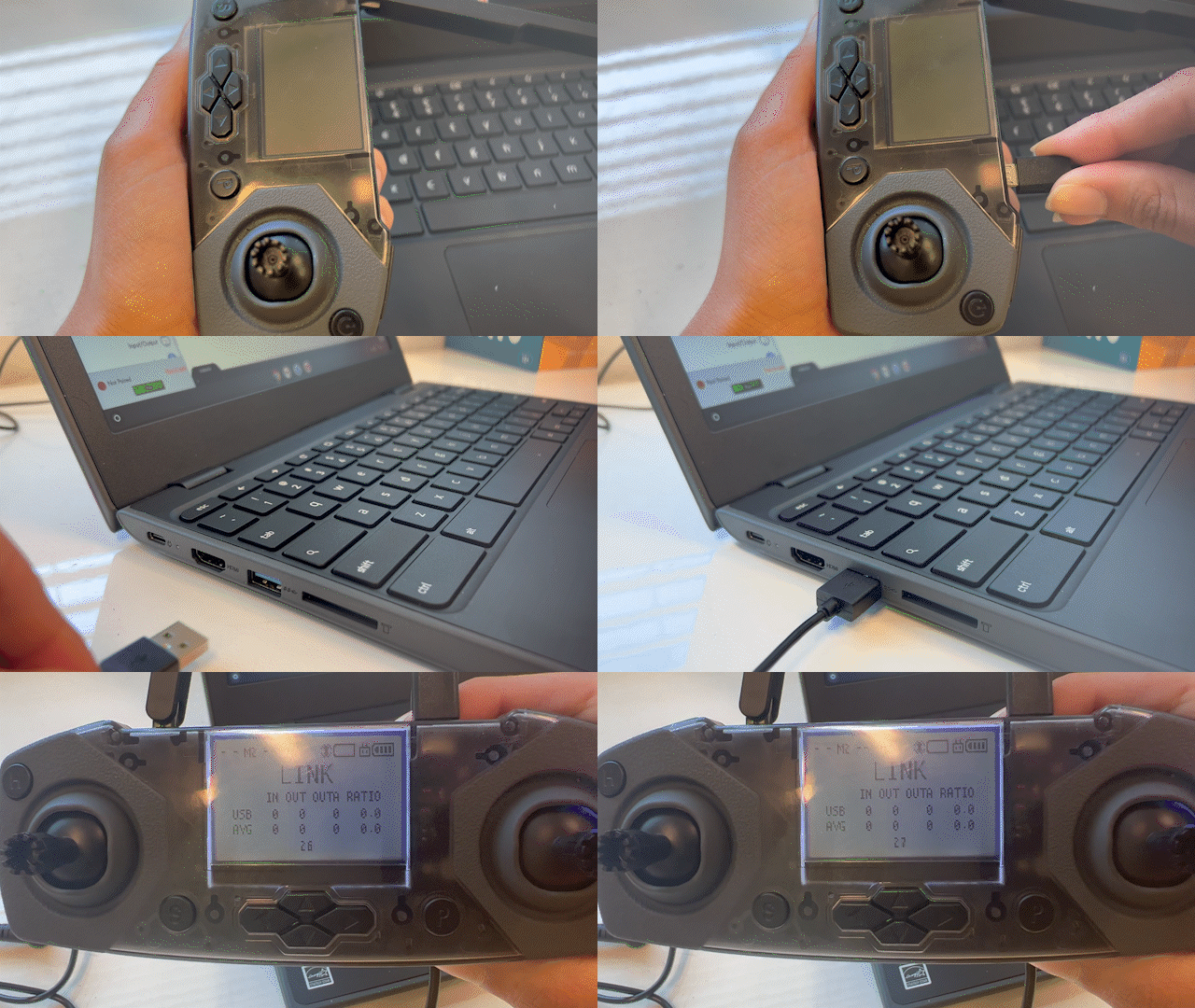
- If the controller is not already in “Link” mode, press the Power button once. You should see “Link” on the controller screen. If needed, disconnect and reconnect the USB cable.
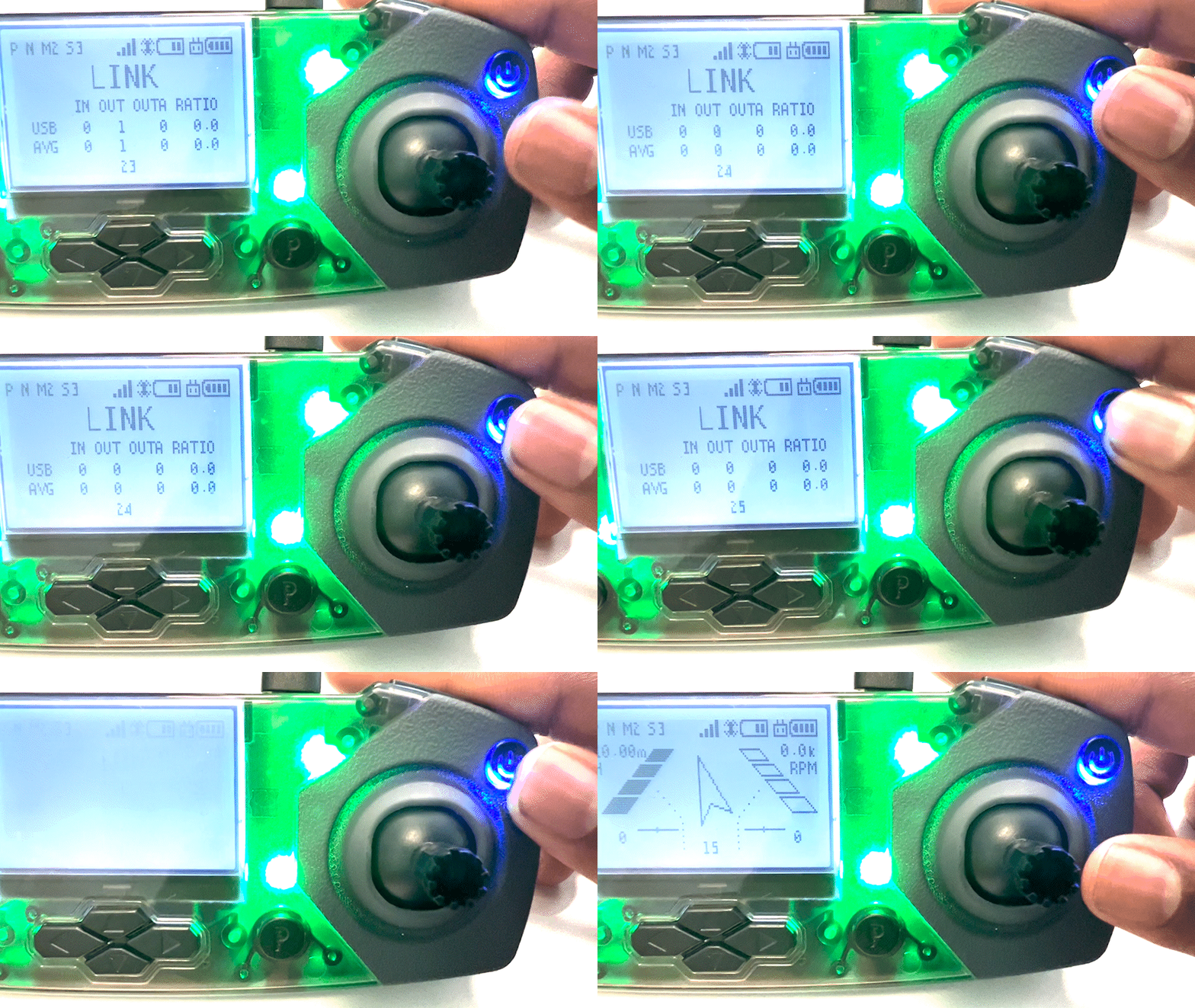
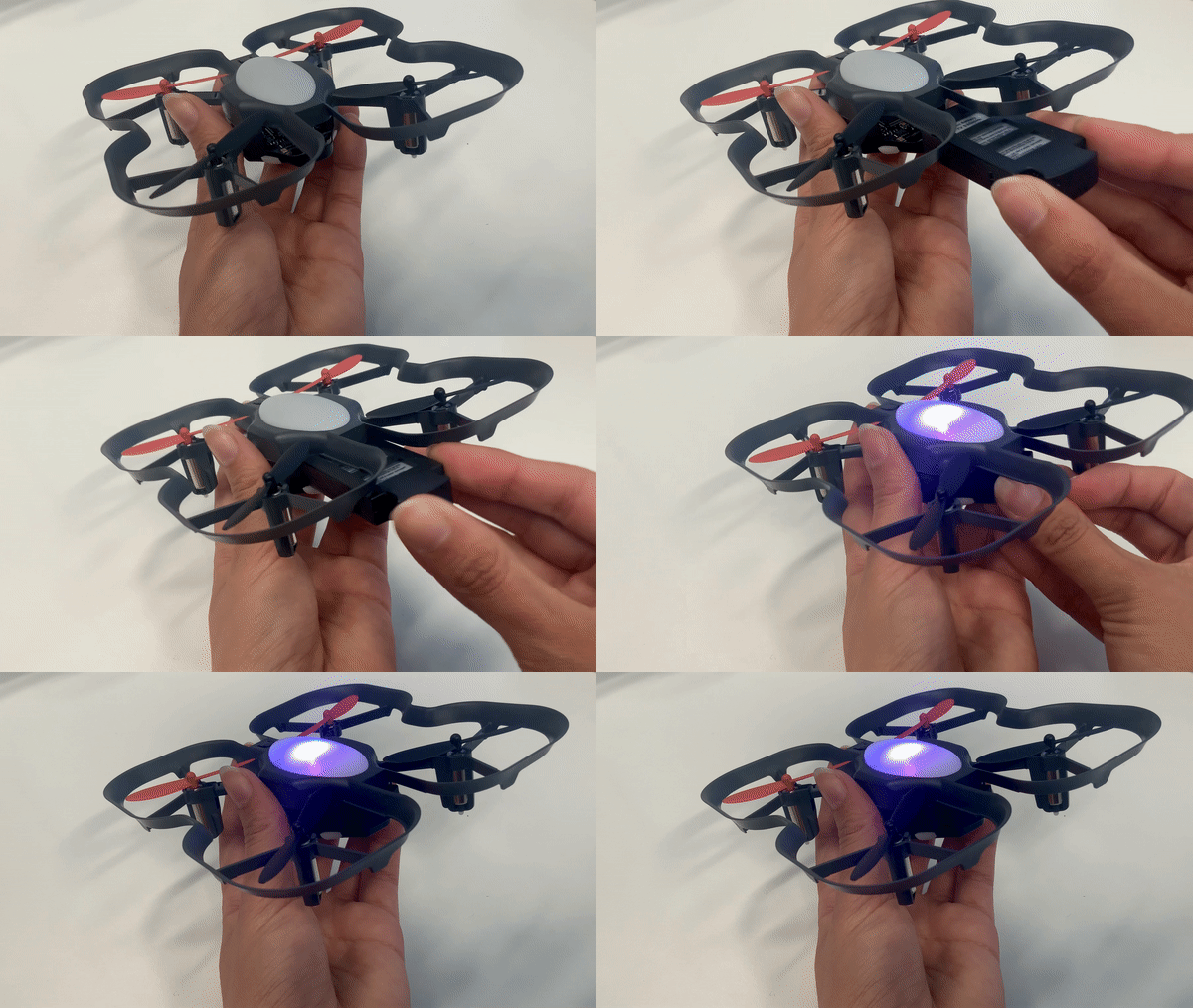
- Power on your CoDrone EDU with a charged battery.
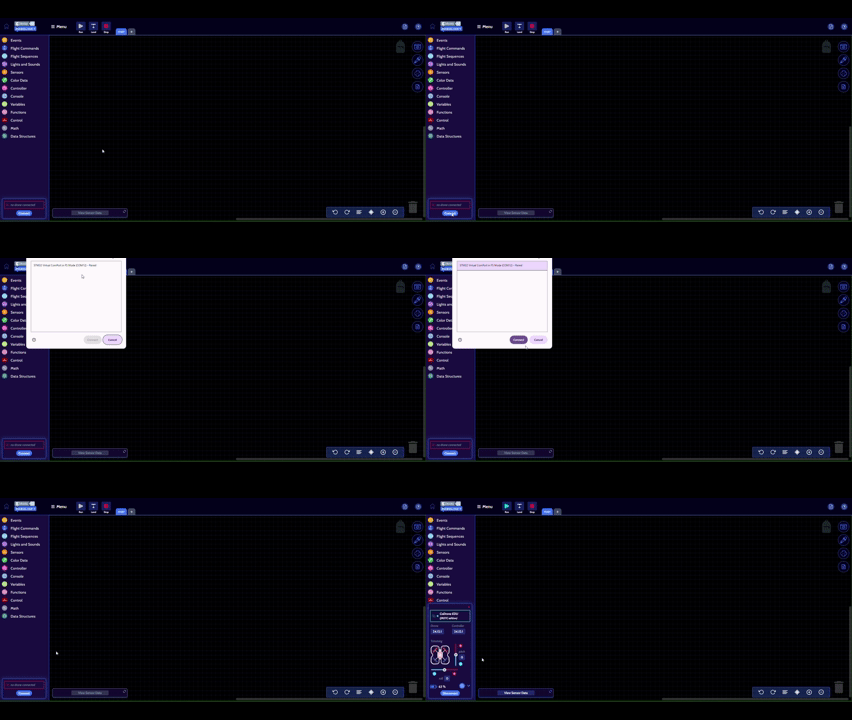
- Click the “Connect” button on the bottom left of Blockly and select the USB device from the pop-up menu.
If you're still unable to connect, continue reading for troubleshooting tips.
Troubleshooting Connection Issues
If you've followed the connection steps but are still having trouble, the most common issue is that the computer is not detecting the controller as a connected serial device. Here are some possible reasons and solutions:
- Google Chrome Is Not Up to Date
The latest version of Chrome is required to support communication with serial devices. If it's outdated, you may not see the pop-up window when clicking “Connect.”
Fix: Update Google Chrome. If you can't update Chrome (e.g., on a managed school device), go to chrome://flags in the browser and enable "Experimental Web Platform features".
- Clear Site Cookies and Cache
If the Blockly website isn’t loading properly, clearing your site’s cookies and cache can often fix the issue.
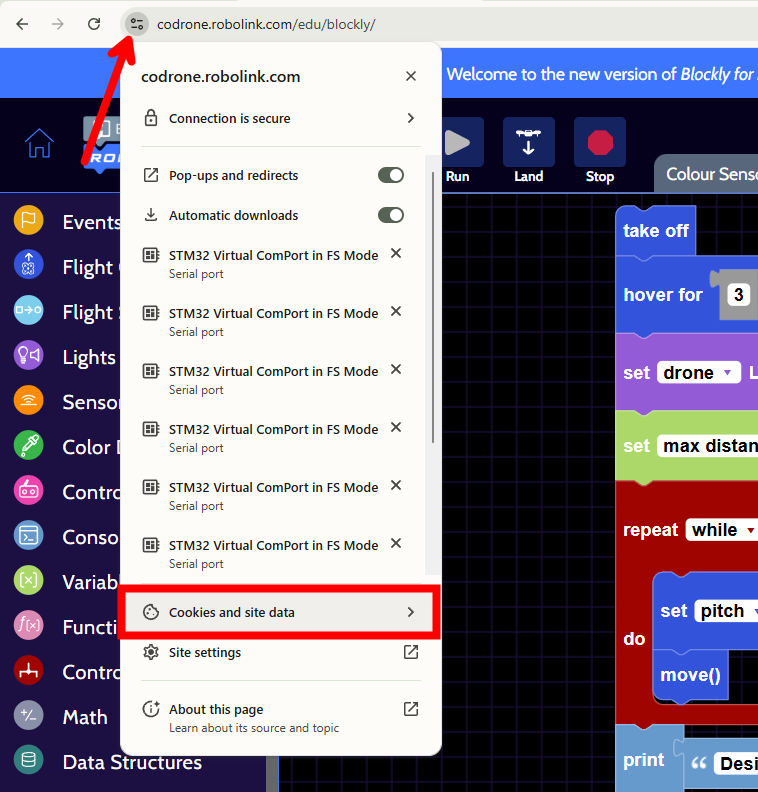
In your browser’s address bar, click the “View site information” icon (usually found next to the URL). Then select “Cookies and Site Data.”
Click “Manage on-device site data.”
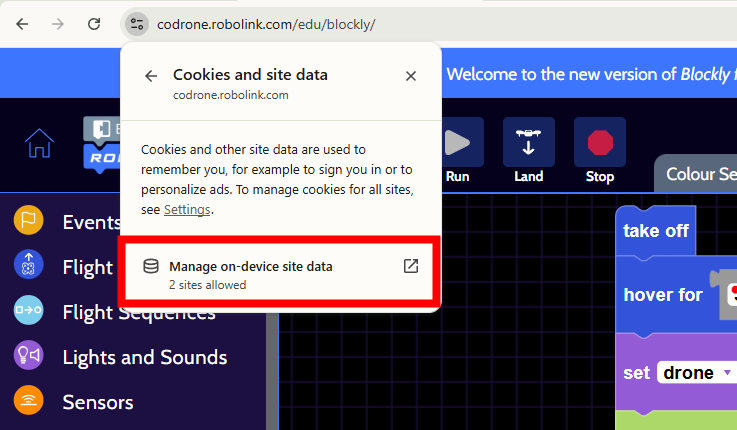
Find codrone.robolink.com in the list and click the trash icon to delete it. This will remove all cookies and cached data for the Blockly website.
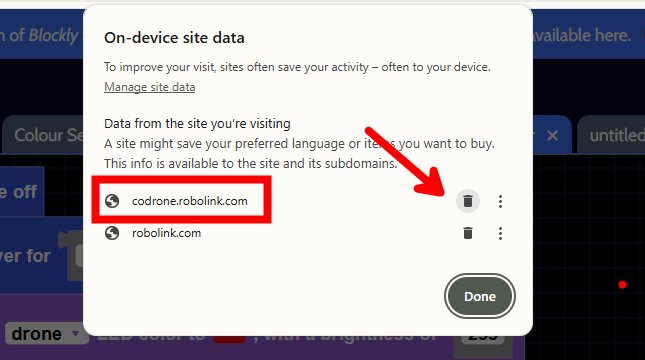
Refresh the page. Once it reloads, try reconnecting your drone.
- Serial Ports or Pop-ups Are Blocked
School devices often have added security protocols. These may block serial port communication or suppress pop-ups needed to complete the connection process.
Fix: Check with your IT department or school administrator to confirm whether:
- USB serial communication is allowed
- Pop-ups are enabled
If you are not using a school issued device, you can turn these on in your google settings by going to the top of your browser and clicking on this symbol:
From here you have access to all of the controls and you can toggle on or off these Google device settings.
Still Need Help? If you've tried the steps above and still can't connect, feel free to reach out to us at support@robolink.com. Let us know what you've tried and what issue you're seeing so we can help you more efficiently.
