How do I update the CoDrone EDU Python library?
 Updated
by
Leila Firestone
Updated
by
Leila Firestone
This article can also be found on our documentation page: https://docs.robolink.com/docs/CoDroneEDU/Python/Updating-Library
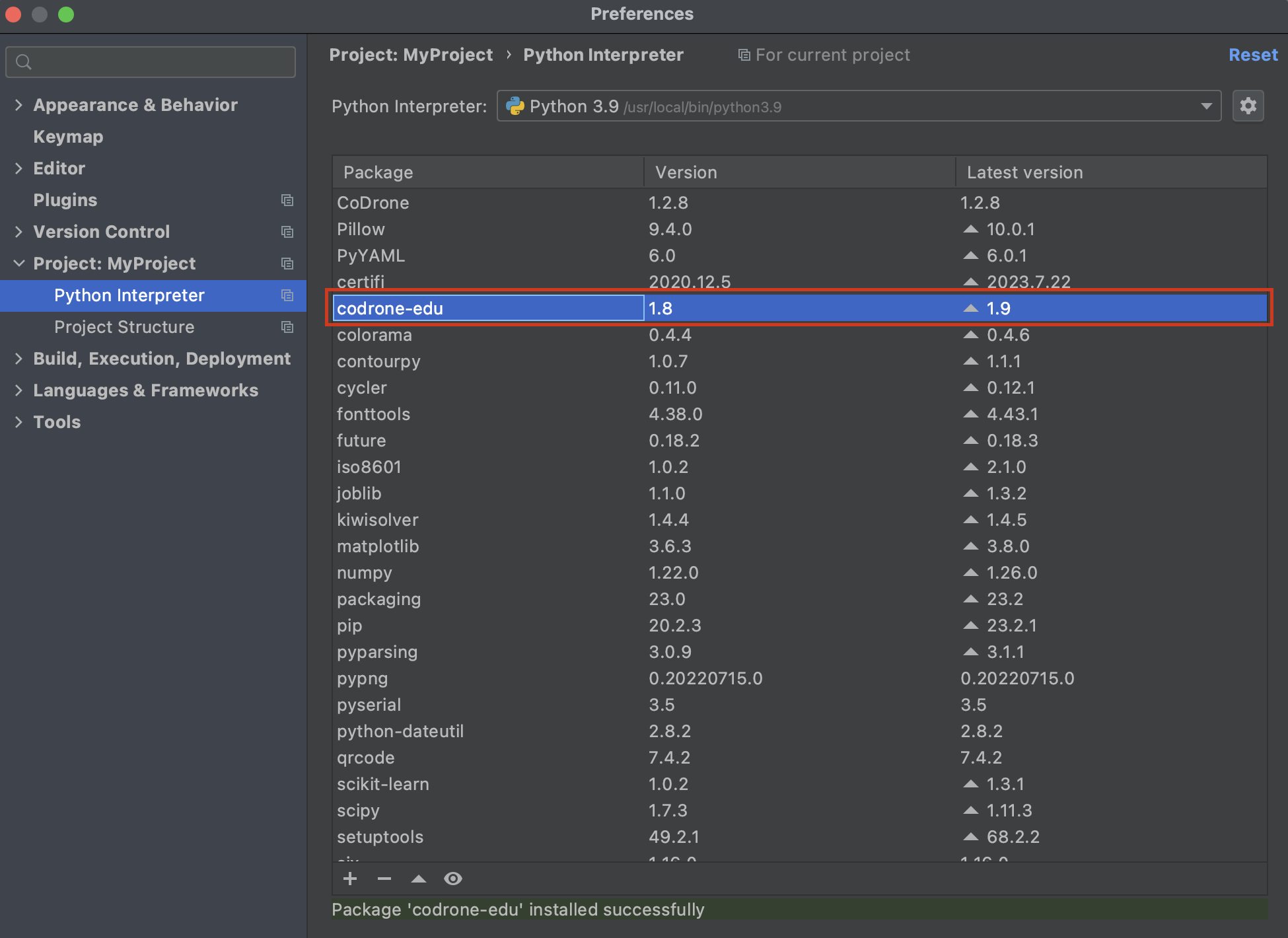
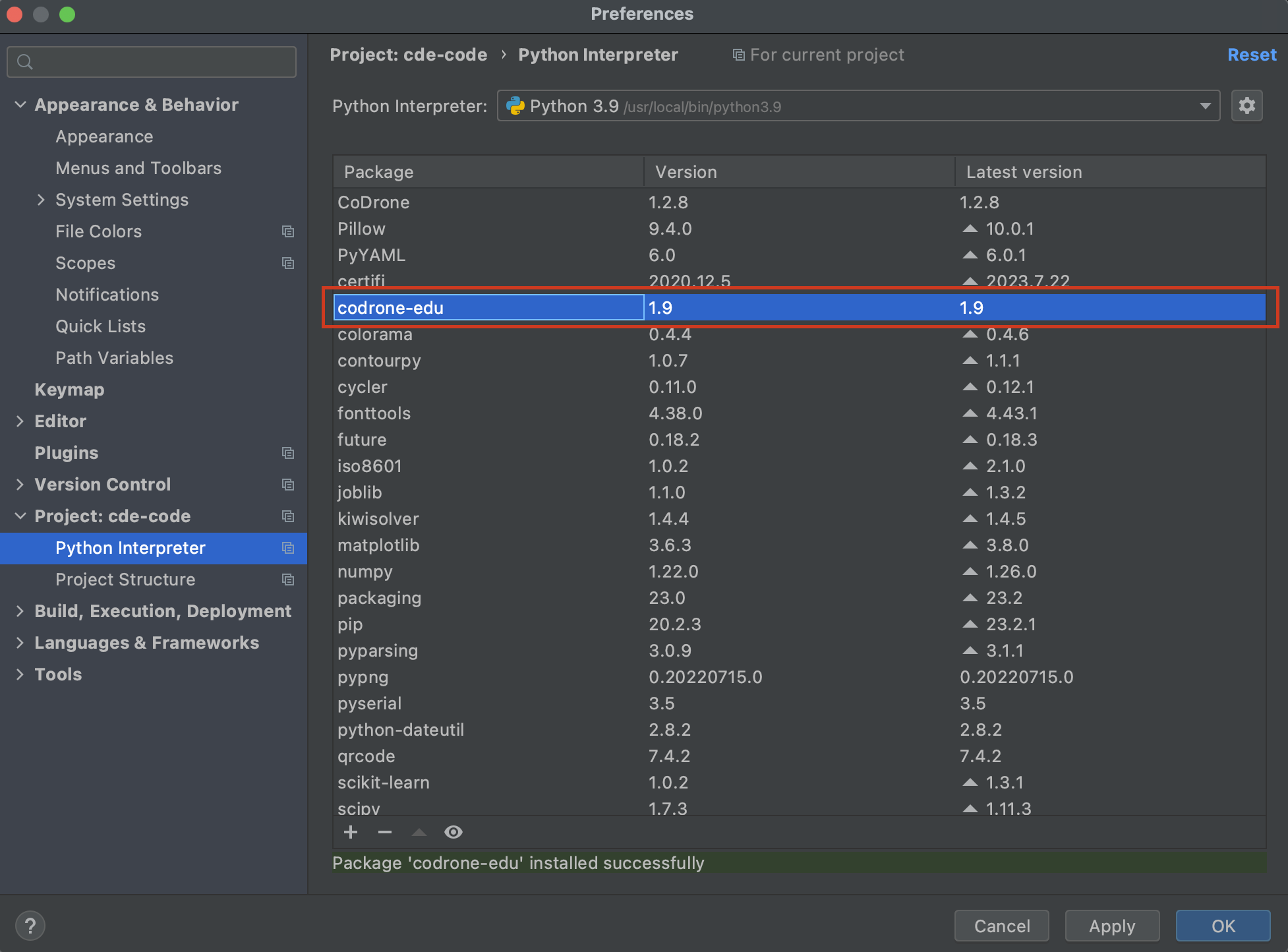
- First, check your current codrone-edu library version in your project interpreter settings.
On Windows, you can find your project interpreter settings under File > Settings. On MacOS, the settings menu is under PyCharm > Settings.
Your current version is listed in the middle column. If there is a newer version available, it will be listed in the third column denoted by the 🔼 symbol. (See newer
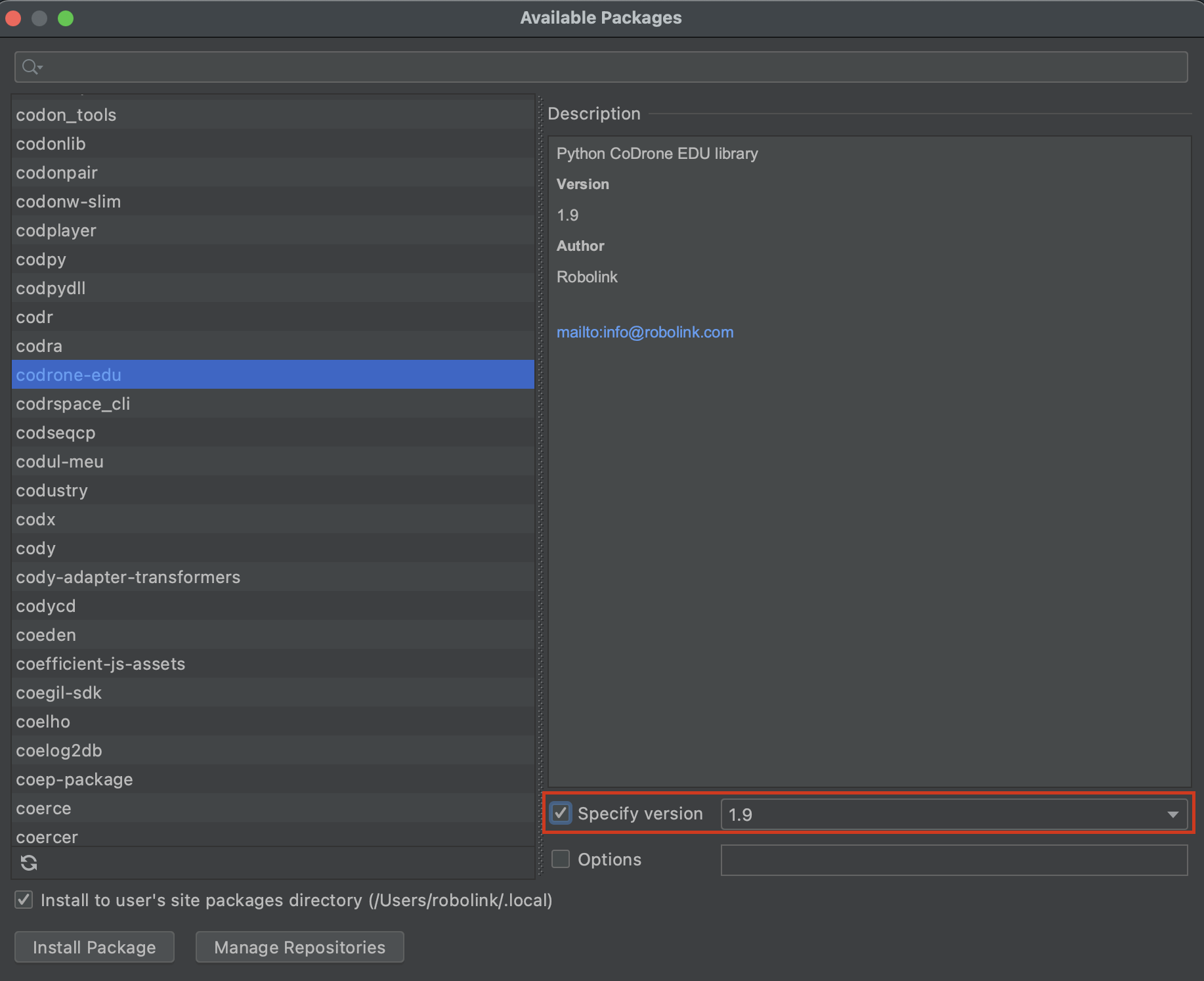
- Double click on the library to open up the installation window. Select the checkbox "Specify version". It should default to the newest version available. Note: If you do not check the box the library will not update.
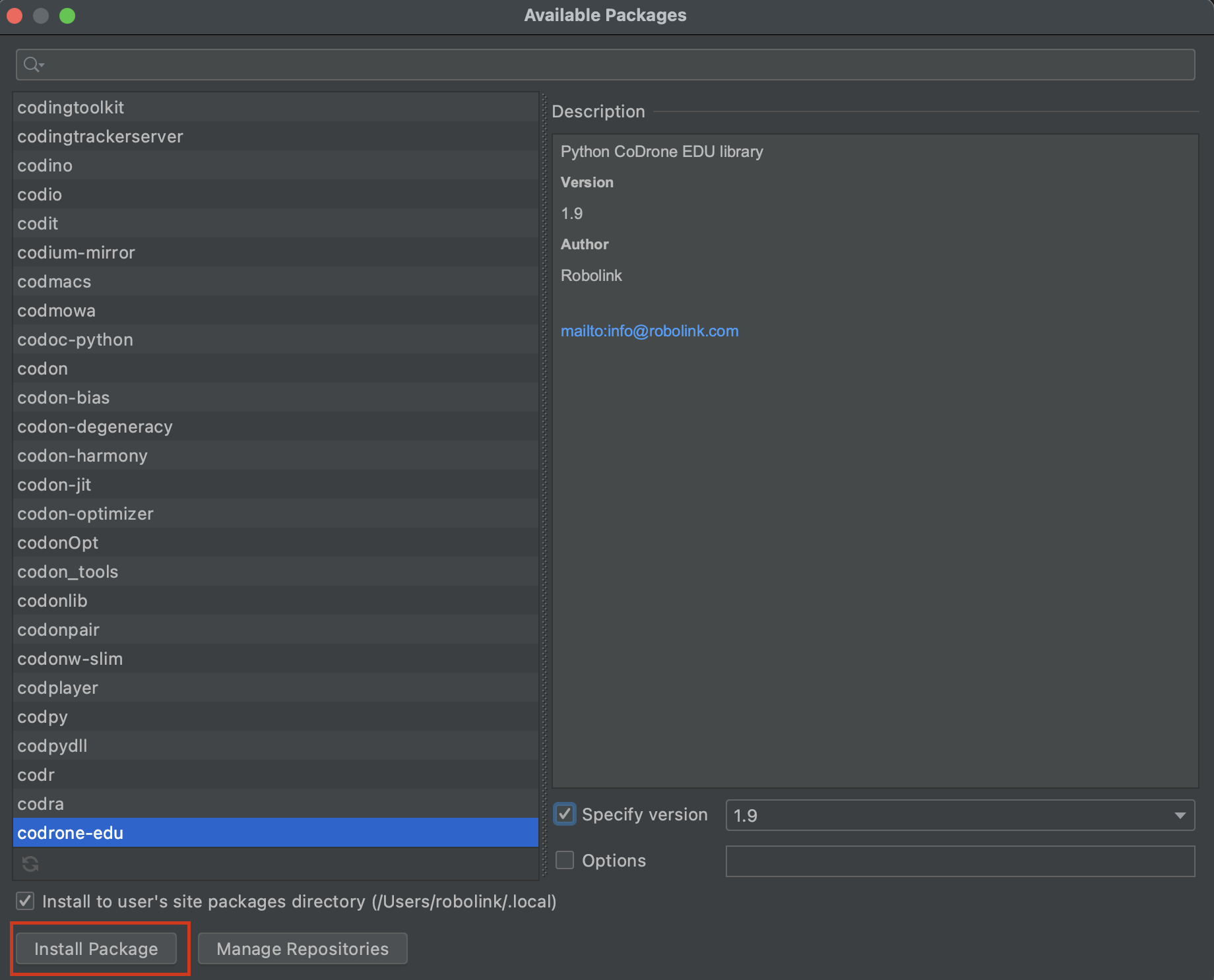
- Click "Install Package" to install the specified version (in this case, the latest version).
- Close the installation window and verify the installation in the package list.
If you have multiple projects that were set up with the default virtual environment settings, you will need to repeat this process for each PyCharm project. Updating the library in one project will not transfer over to any other projects.
