The CoDrone EDU/CoDrone EDU (JROTC ed.) web updater is not working!
 Updated
by
Robolink Support
Updated
by
Robolink Support
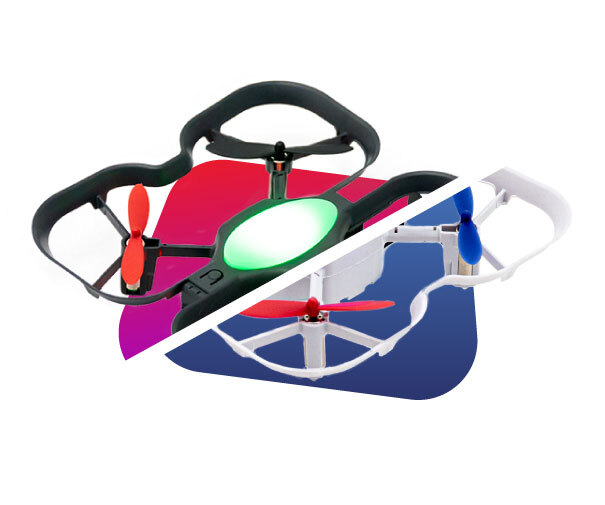
If you haven’t heard, there’s a new way to update your CoDrone EDU firmware—right from your browser! No downloads, no installations, and it works on Windows, macOS, and Chromebooks. This tool will guide you through the update process for your drone and controller.
Launch the web updater here: codrone.robolink.com/edu/updater
If you’re running into issues during the update, this article will walk you through how to troubleshoot. Below are the most common problems and how to resolve them.
Connection Error with the drone
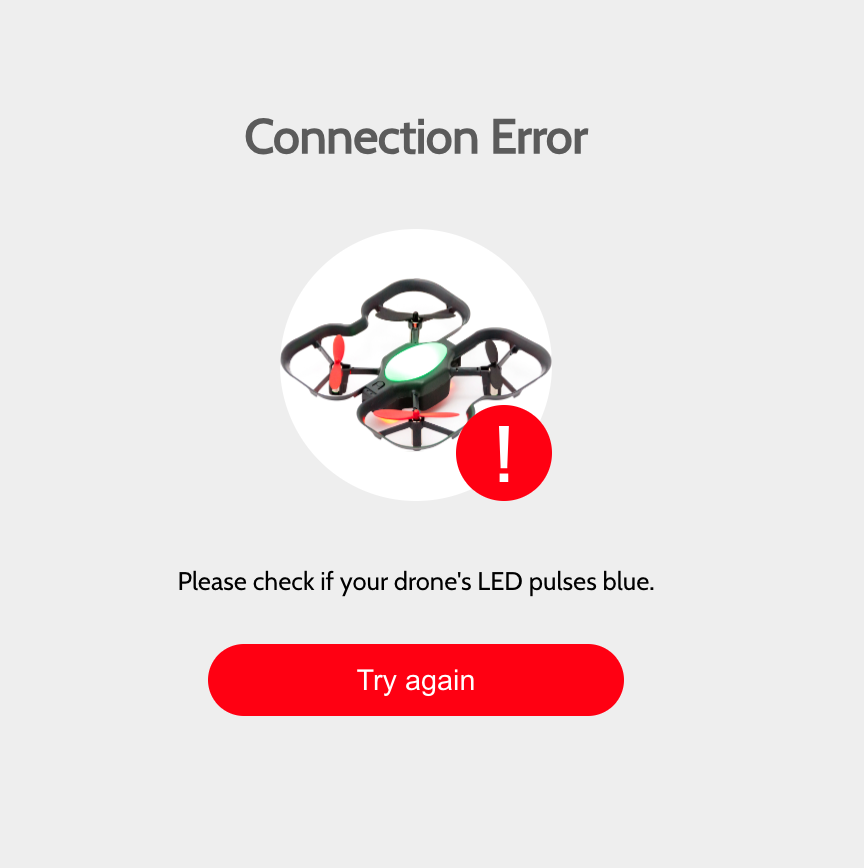 |
If your drone is pulsing red when you see either of the following errors, the drone is not in the bootloader state. The drone needs to be in the bootloader state for it to update.
1. Disconnect the USB cable and click "Try Again".
2. Follow the instructions on how to get your drone into the bootloader state. Make sure you are pressing and holding the button on the underside of the drone while you plug in the USB to the drone. The drone should pulse a blue light if you did this step correctly.
Connection Error with the controller
If you see either of the following errors, the controller is not in the bootloader state. It may be blinking red instead of pulsing blue. The controller needs to be in the bootloader state for it to update.
1. Disconnect the USB cable and click "Try Again".
2. Follow the instructions on how to get your controller into the bootloader state. Make sure you are pressing and holding the “H” button on the top left hand side of the controller while you plug in the USB to the drone. The drone should pulse a blue light if you did this step correctly.
“An Error Occurred While Connecting to CoDrone EDU”
This happens when the wrong device is selected for the update (e.g., choosing the drone firmware while the controller is plugged in, or vice versa).
1. Click "Try Again".
2. Select the correct firmware updater based on the device and version you are using
“No Compatible Devices Found” in the Pop-Up Window
When you click Connect, a pop-up window should appear listing available serial ports. If nothing shows up, your computer isn’t detecting the device.
1. Click "Cancel" and check that you are using the correct data cable. Your USB cable may not be a data cable, or something is wrong with the cable or port that is preventing it from powering the device. If this happens, try using a different USB port or cable.
2. Disconnect from Blockly or Python before updating. If your drone or controller is already connected to Blockly or Python for Robolink, the serial port is in use and won’t appear in the updater. Be sure to disconnect from all coding platforms before plugging in your device.
Update Failed Midway
If the update starts but fails partway through, you’ll see a failure message—usually due to the USB cable disconnecting mid-update.
1. Unplug the drone or controller from the cable.
2. Click "Try Again".
3. Follow the instructions to get your device back into the bootloader state.
If you run into issues not listed above or have feedback, reach out to us at support@robolink.com.
