How do I update the firmware on my CoDrone EDU (JROTC ed.) drone and controller?
 Updated
by
Robolink Support
Updated
by
Robolink Support
How do I update the firmware on my CoDrone EDU drone and controller?
Occasionally, you may need to upgrade the firmware on your devices to have the latest software. Here are the current versions of the drone and controller firmware:
Drone: Version 24.12.1
Controller: Version 24.12.1
Your firmware versions can be found by pressing the S or P button to cycle through the status screens until you reach this screen. The firmware versions are listed in the top row of numbers.
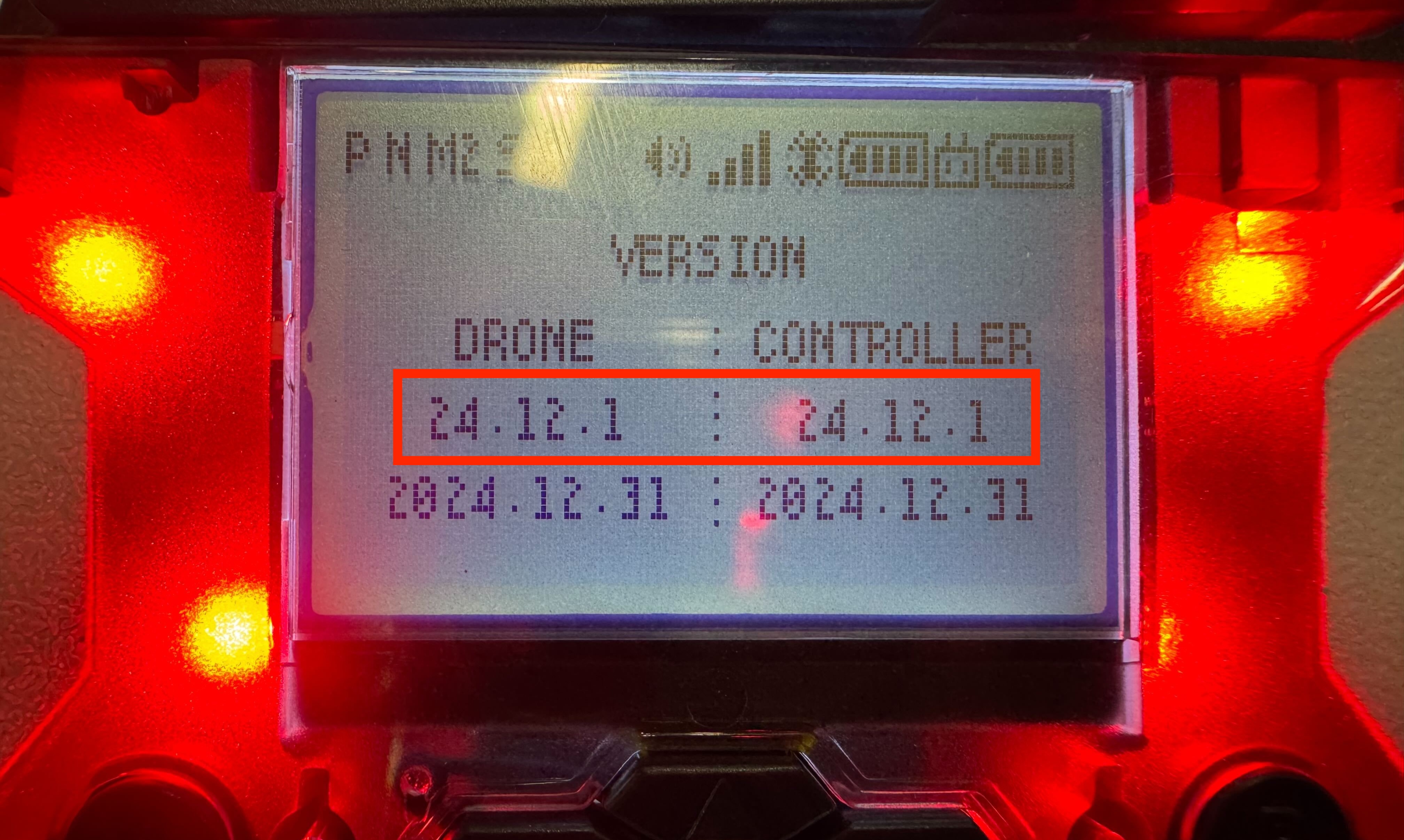
Both the drone and controller should be updated to the latest versions. If your drone and controller versions do not match the above image, then please follow these instructions below or visit our Web Updater if you are not a Windows user.
Steps
How to Download and Install the Firmware Files:
- Download the firmware files here: 📂 AutoUpdaterEn_JROTC.zip
- Check your "Downloads" in Chrome for a message that may be blocking the download. When it's finished downloading, open it in your finder view.
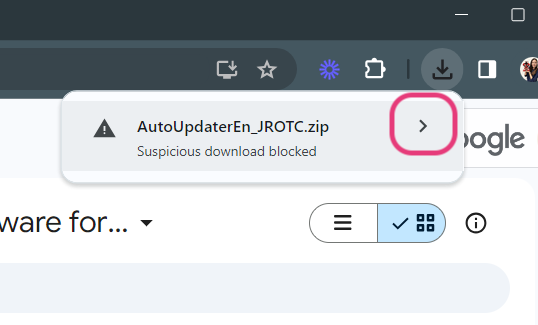
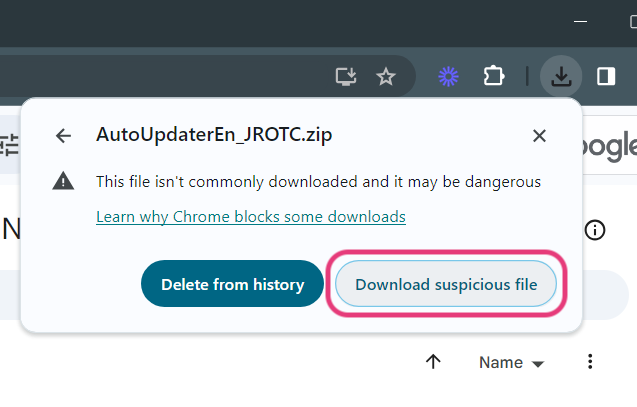
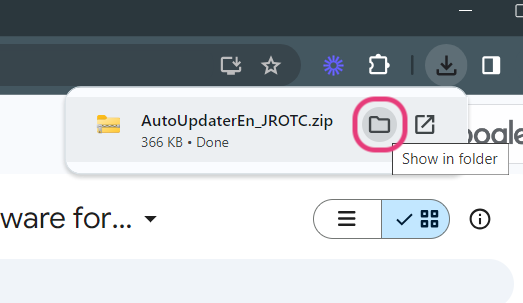
- Extract the files and open the firmware updater. While extracting you may see the following message. Simply click “skip” to continue extracting.
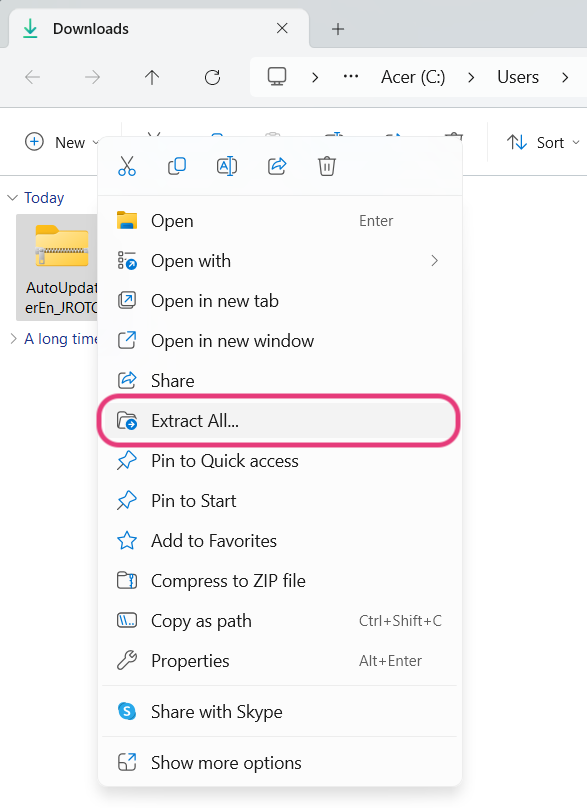
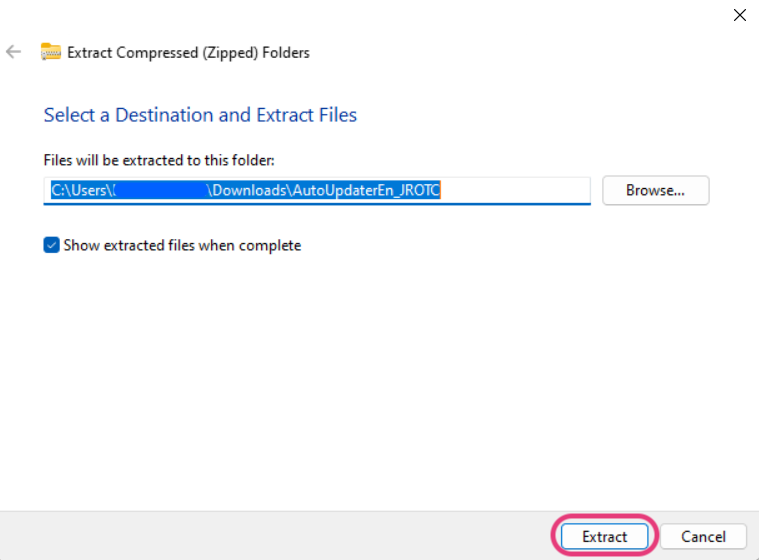
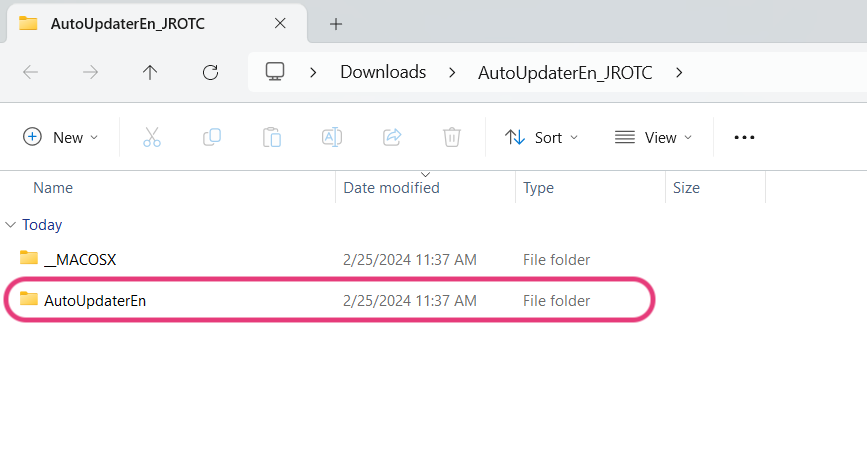
- Once the firmware has been downloaded and extracted, open the file and select run “AutoUpdateEn”.
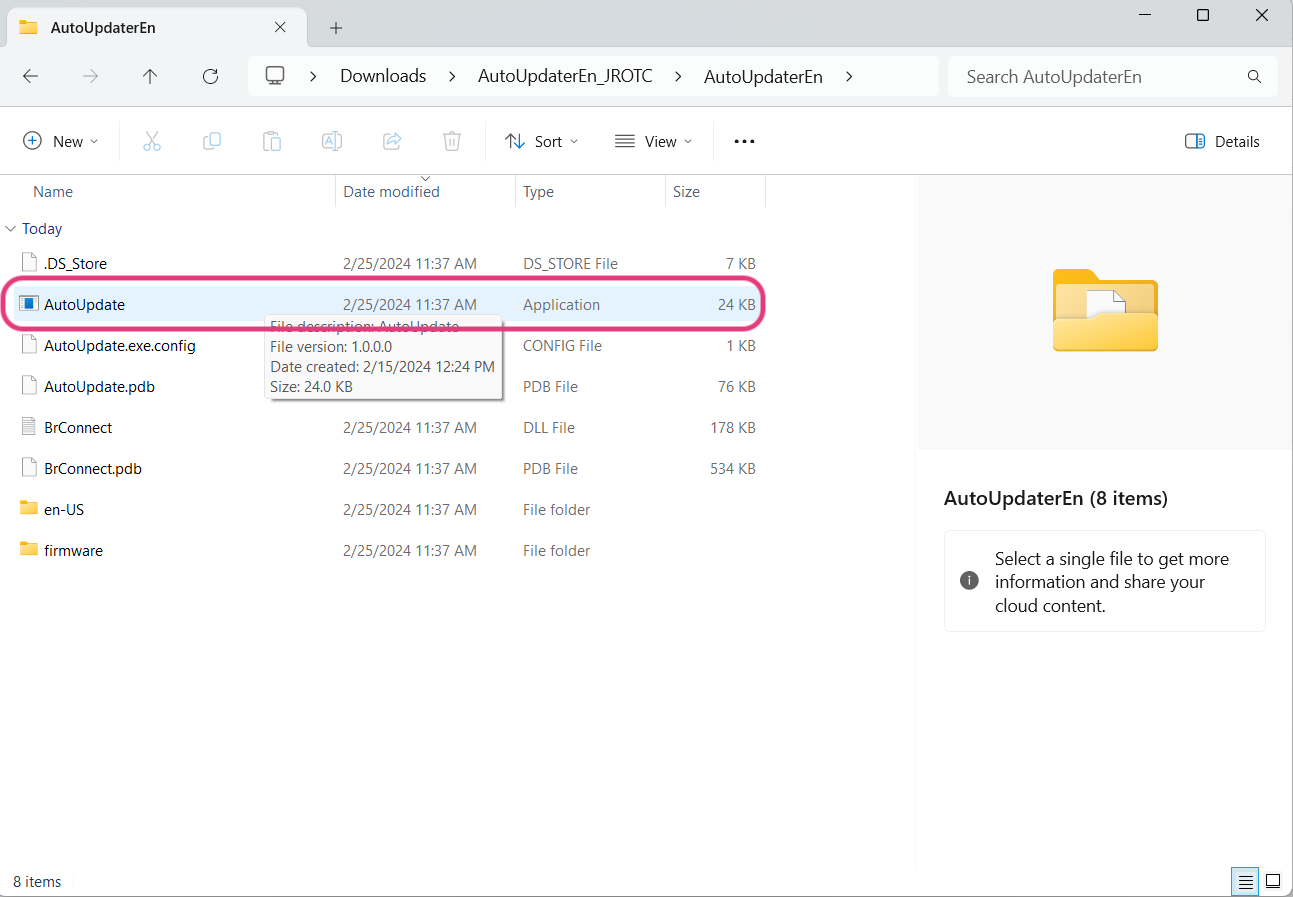
- Run the "AutoUpdate" application. You may need to allow Windows to run an "unrecognized app".
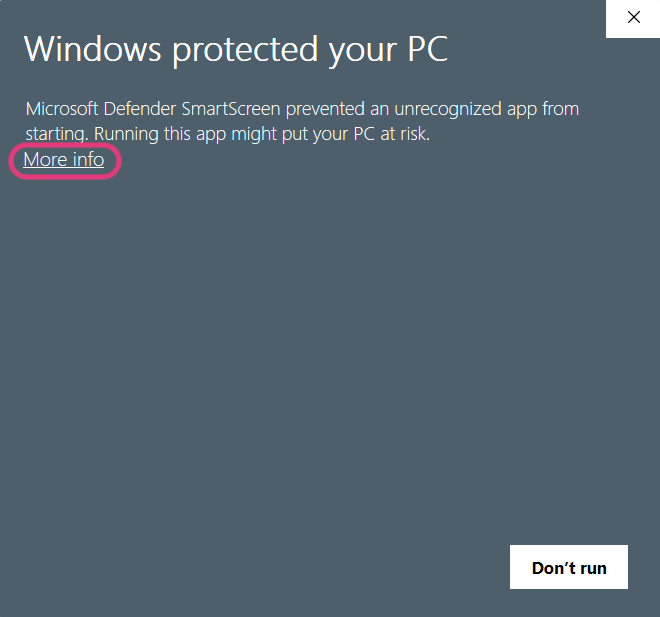
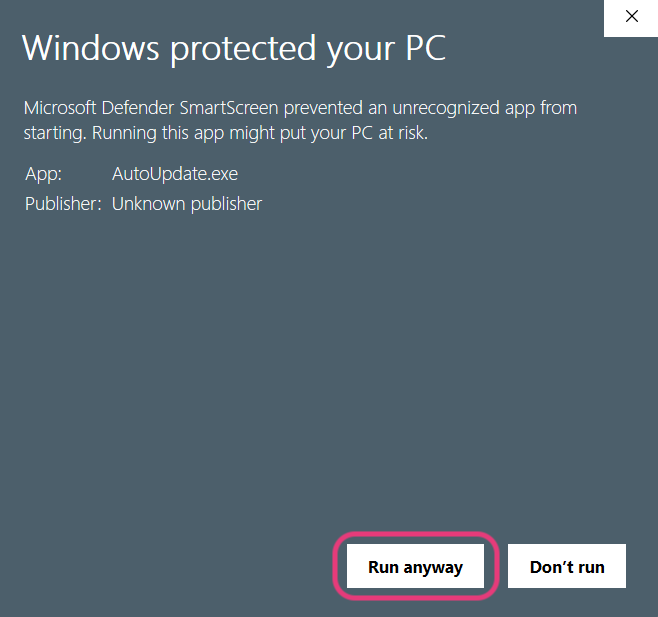
- Click “Run anyway”
- When "AutoUpdate" opens you will see the following screen.
- With this screen open, leave it as is and follow the instructions below to update either the drone or the controller.
How to Update Your Drone Firmware:
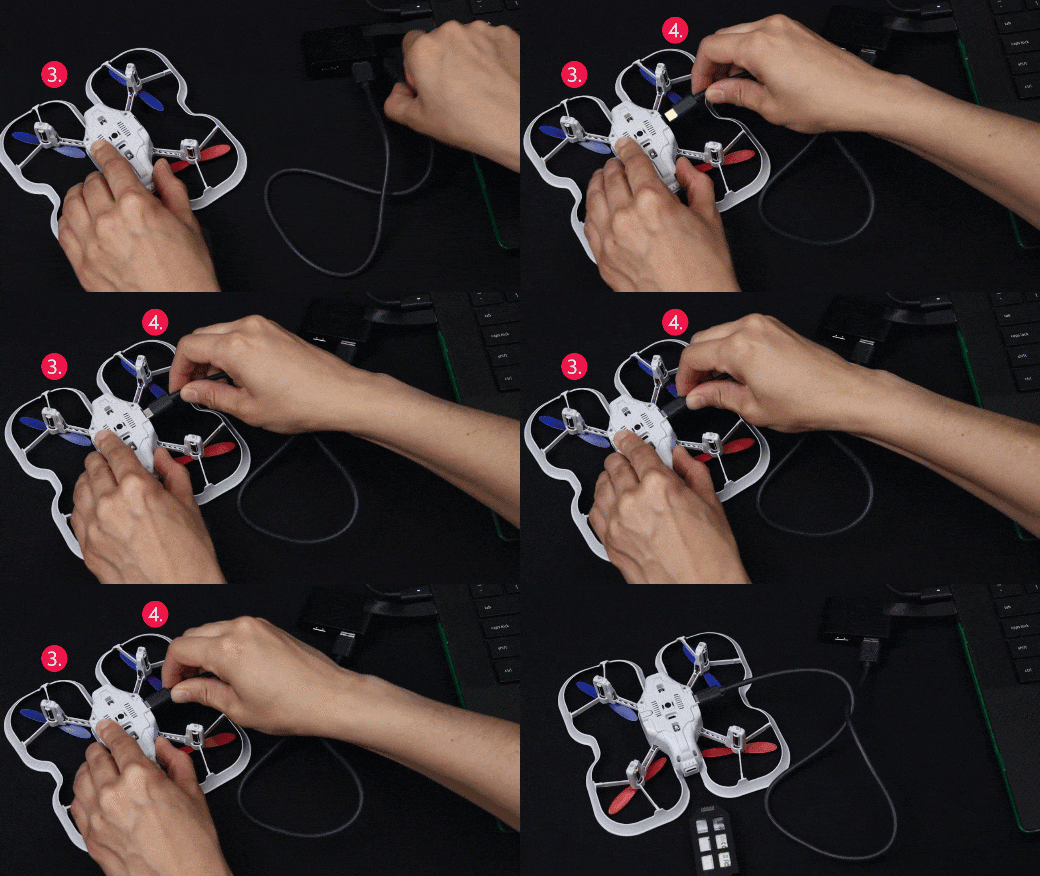
- Connect the USB cable to your computer first. Do not plug in the drone yet
- Press and hold the button on the underside of the drone while simultaneously connecting the USB-C end of the cable to the drone.
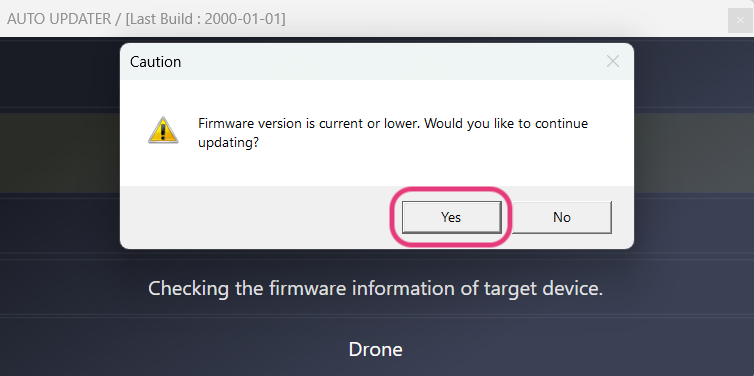
- Your computer should automatically detect the drone and it will show what firmware it is updating to. If prompted that your firmware is up to date, click “Yes” to continue updating.
- After you have clicked yes, your drone will begin updating to the desired firmware. Do not disconnect until you hear the buzzer from the drone sound and the drone blinks red.
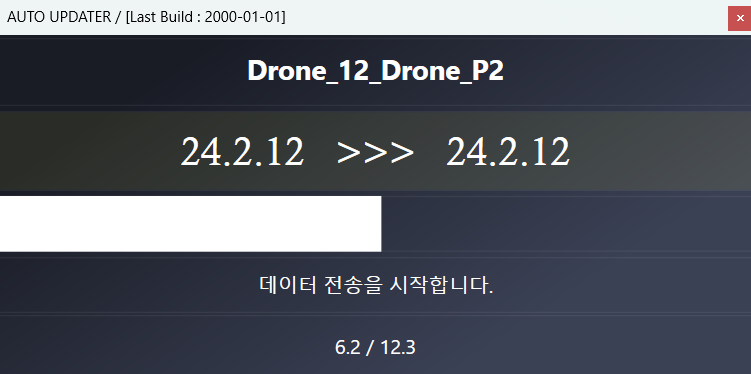
** NOTE: These images may not represent the most recent Firmware. They are only here as references!
Now that you have updated your drone, please follow the next steps on how to update your controller!
How to Update Your Controller Firmware:
- Connect the USB cable to your computer first. Do not plug in the controller yet
- Press and hold the “H” button located on the left hand side of the controller. While holding the “H” button connect the USB-C cable to the controller. While still holding the "H" button, power on the controller.
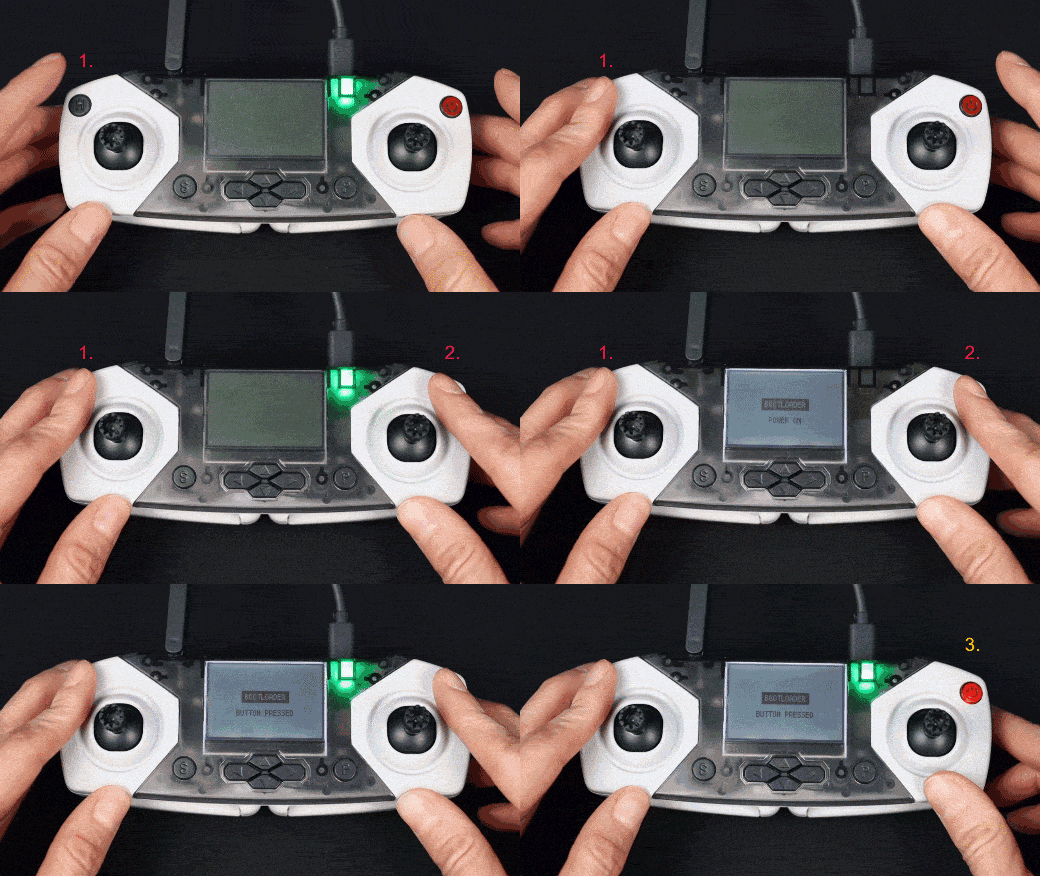
Verify that the controller is ready to update by checking the screen for "Bootloader".
- The controller will power on and the update will begin automatically. Watch the progress bar in the updater until it reaches completion. Do not unplug the controller until the controller prompts you.
If you run into issues, reach out to us at support@robolink.com.
