Do I need an internet connection to code my CoDrone EDU or CoDrone EDU(JROTC ed.) with Blockly?
 Updated
by
Robolink Support
Updated
by
Robolink Support
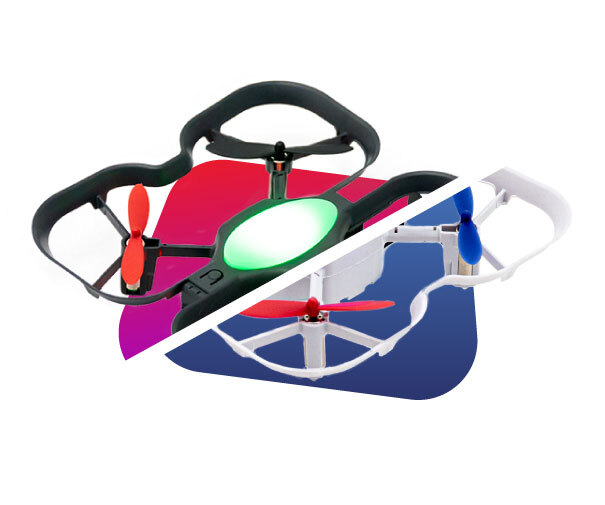
Looking for a way to code your drone without an internet connection? With the offline Blockly web app, you can pair and program your drone without ever opening the browser. Offline Blockly was built to be a copy of what is on the browser, therefore you will have access to the same commands and features as before!
In order to download the app, you must first be able to acquire or have access to:
- A Windows, MacOS, or Chromebook computer with an accessible USB port for serial communication
- A Chrome browser and a Google account
- A CoDrone EDU with battery, Smart Controller, and the included USB cable from your kit
Please follow these steps on how to install Blockly:
- Connect to the internet and open the Chrome browser.
- Go to https://codrone.robolink.com/edu/blockly/ and select CoDrone EDU
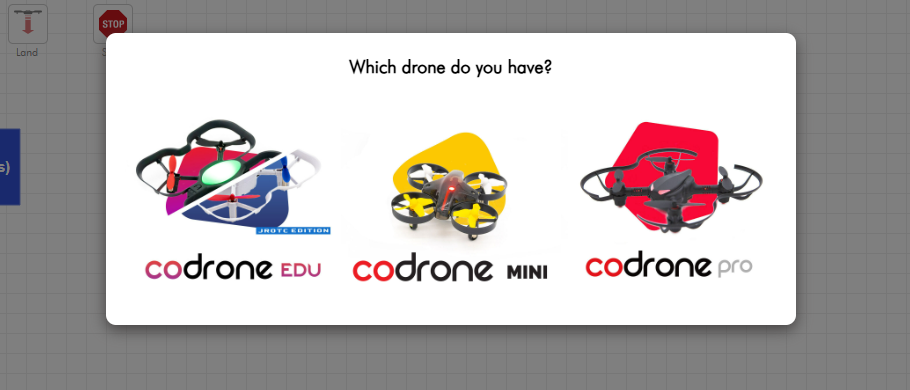
- Check the browser URL for an icon to install the app. You may need to wait a few seconds. If the icon is not appearing, check that you are not using a guest account.
A pop-up window will appear to install the Chrome App.
- The app should open immediately and appear in the Dock (Mac) or Taskbar (Windows). Right-click to pin it to your dock or taskbar.
If the app does not open automatically, check your Chrome Apps or Applications Mission Control (Mac).
On Windows, it will be under your Start Menu Programs. Use the Windows start menu and type “Blockly for Robolink”. The file should also automatically appear on your desktop once you have successfully installed it.
- When it opens, it should look just like the browser page. Follow the instructions here to learn how to connect your drone and controller to Blockly the same way you would in the browser.
If you have trouble downloading the app, please make sure this app has never been downloaded before by searching "Blockly for Robolink" on your computer. Should you run into any errors when downloading please reach out to us at support@robolink.com
