How do I reset the CoDrone EDU controller settings?
 Updated
by
Robolink Support
Updated
by
Robolink Support
If you change flight modes or experience unexpected controller behavior, you can factory reset your controller—and the drone if they are paired. This article will guide you through the reset process using the SET DEFAULT command.
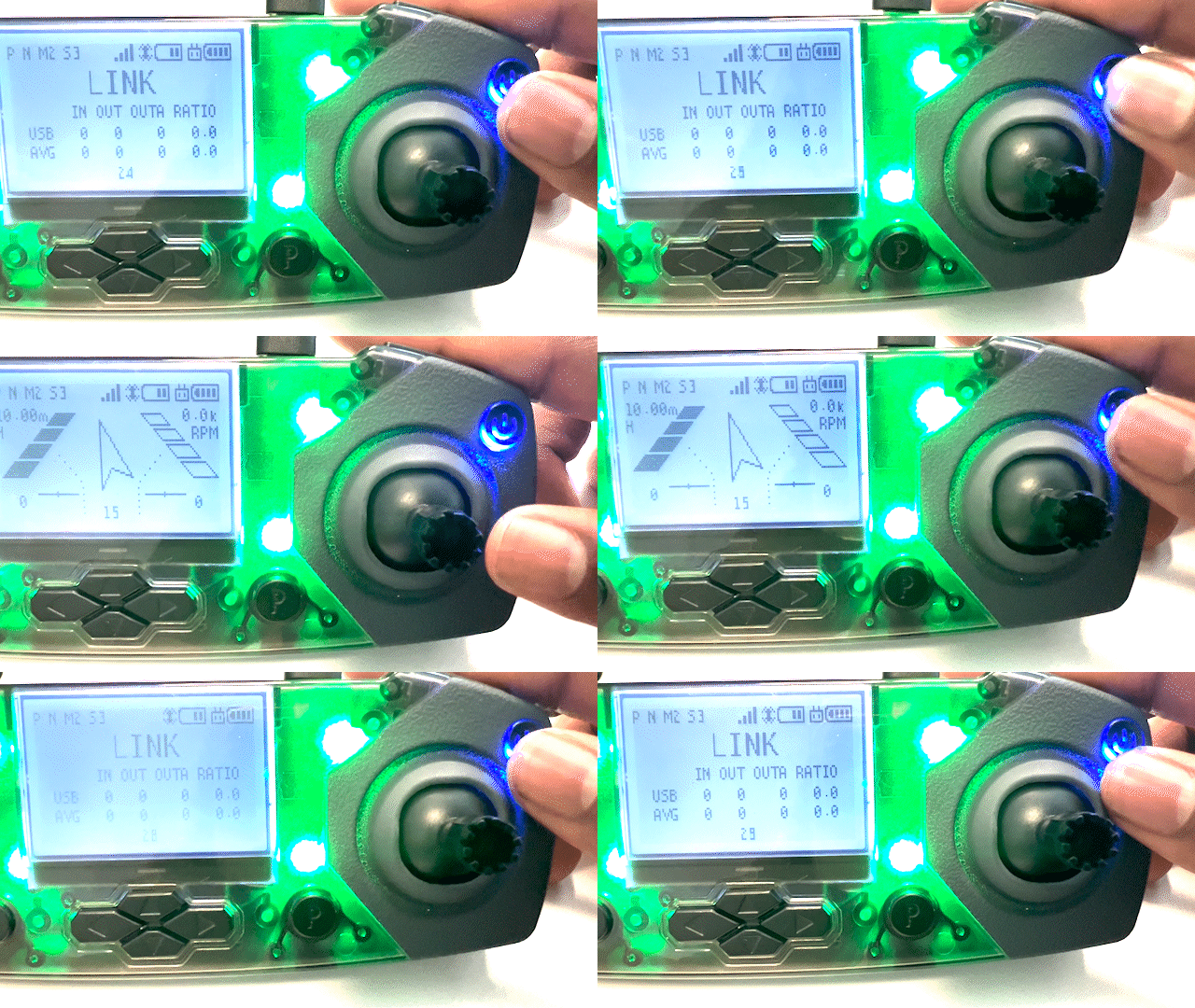
If you cannot find your flight log or "COUNT" screen on your controller, or your screen is frozen and you are unable to shuffle through the screens using the "S" or "P" buttons, please follow this article to bring it back.
- Power on your drone and controller. Switch into manual flight mode (with the arrow).
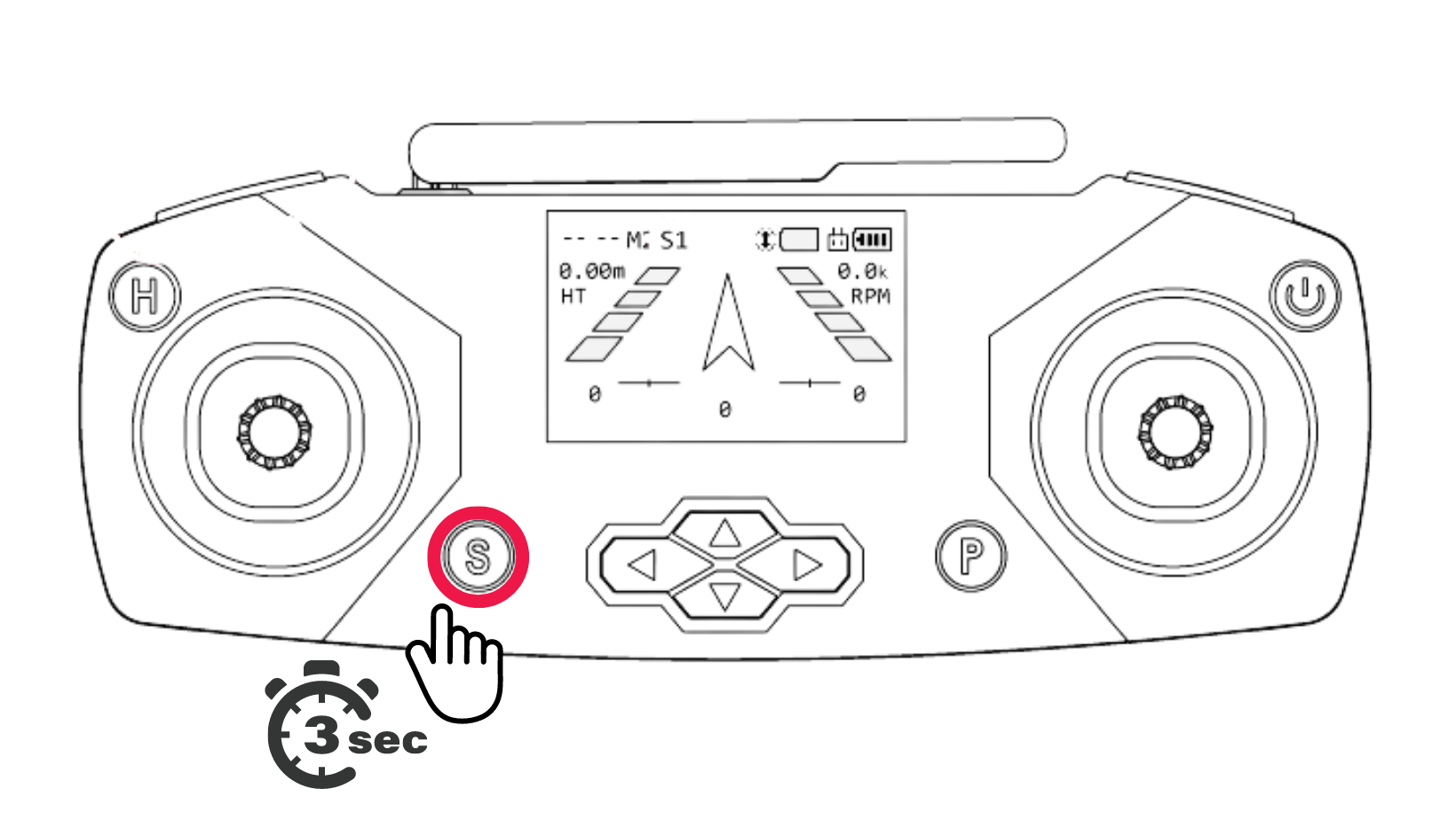
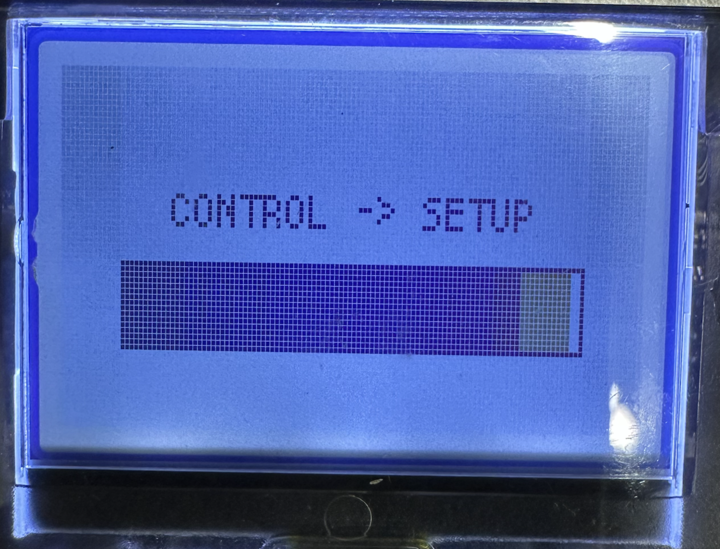
- Hold down the S button to open up the settings menu. When you press and hold you should see your screen show you are moving into the SETUP menu.
- Using the right analog stick, scroll all the way down to "FUNCTION"
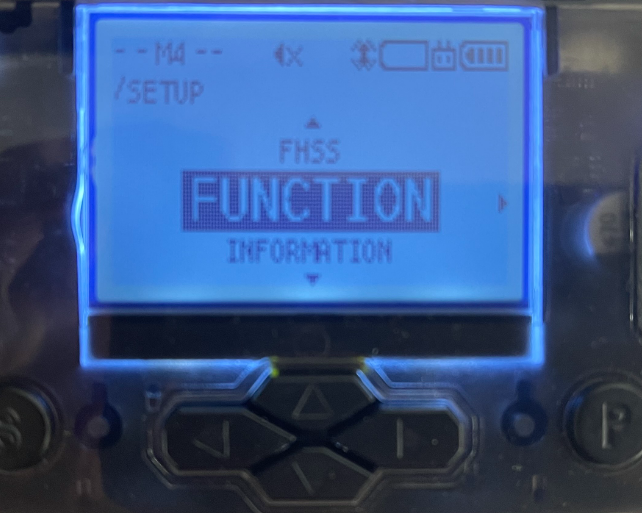
- Move the right analog stick to the right to go into the submenu. There are three different options labeled "Sensor Reset", "Pairing" and "Set Default". Scroll down to "SET DEFAULT".
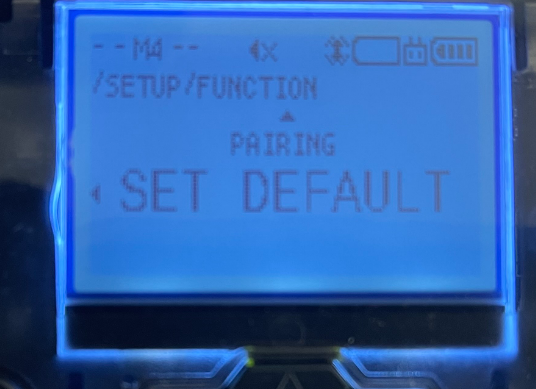
- To reset the controller, make sure the "SET DEFAULT" option is selected and press the R1 button. When pressing the button, the "SET DEFAULT" option will become highlighted and your controller will make a chime sound. The chime indicates the controller was successfully reset to its original operating state and default flight modes.
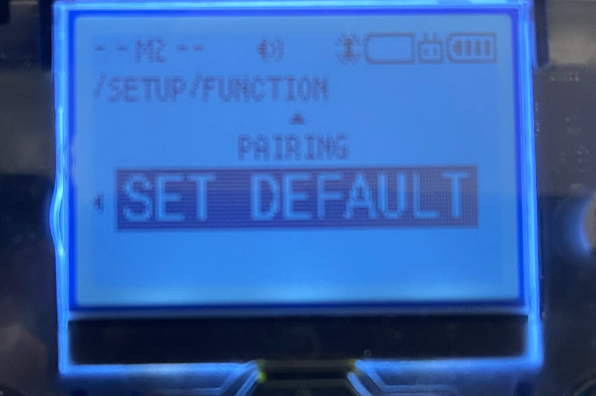
- To exit out of the settings menu, press and hold the "S" button to take you back to the manual flight screen!
For more information on the controller and its settings, check out our video tutorial.